

Install a vault application
Every CtrlDocs product is an M-Files vault application, installed through M-Files Admin into a single vault. The procedure is the same for all of them; only the file you select differs. Each product’s own Set up section names its file and lists anything that has to be done before or after.
Before you start
Section titled “Before you start”- Administrative access to the target vault through M-Files Admin, on a machine that can reach the M-Files server.
- The product’s
.mfappxfile. - A scheduled window for a vault restart. Installing a vault application requires one. A restart usually takes a few minutes, but every connected user is disconnected while it happens, so agree the timing before you start rather than after.
-
Open M-Files Admin and connect to the server hosting the target vault.
-
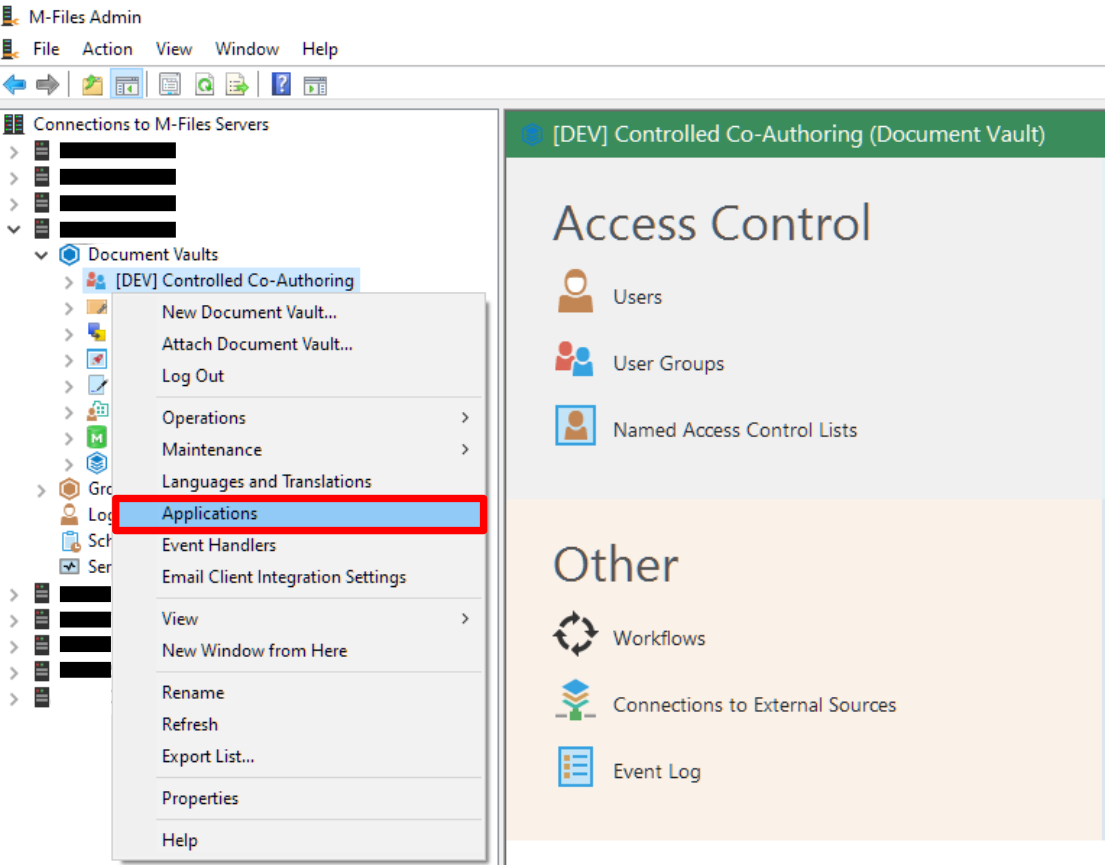
In the list of document vaults, right-click the target vault and select Applications.
-
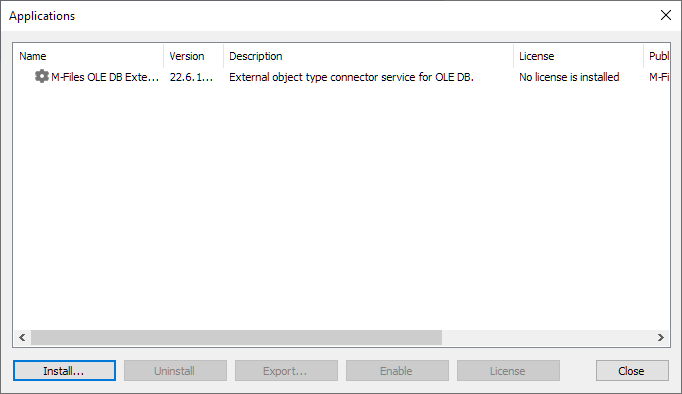
The Applications dialog lists every application already installed in the vault. Select Install.
-
Select the
.mfappxfile and choose Open.Vault applications are distributed as
.mfappx. A.ziparchive is also accepted in most cases. User interface applications are also.zip, but they normally ship inside the vault application and are rarely installed on their own. -
Close the Applications dialog. The restart does not begin until you do.
Reopen Applications for the vault. The product should be listed, with no error shown against it.
Most CtrlDocs products also need a licence before they will do anything. If the application reports a licence error, that is expected at this point — see Install a vault application licence.
- Install a vault application licence
- Return to your product’s Set up section to configure it.