

Add a OneDrive account
Every document CtrlShare checks out goes into one OneDrive account, and stays there until it is checked back in. This connects that account.
The same steps re-authorise an account whose consent has expired, which is the more common reason to be on this page. Nothing else in the configuration changes.
Before you start
Section titled “Before you start”- The Application (client) ID and client secret from the
Entra ID registration, with
http://localhost/ctrlshareregistered as a Web redirect URI. - The credentials of the service account whose OneDrive will hold the files.
- A browser you can sign in to that account with. Sign out of any other Microsoft account first — the consent is granted as whoever is signed in, and there is no confirmation afterwards saying which account that was.
-
Open the CtrlShare configuration.
In M-Files Admin, connect to the server, open the vault, and select Configurations → Other Applications → CtrlShare → Configuration.
-
Fill in the OneDrive for Business section.
Setting Value Client ID The Application (client) ID from the Entra registration Client Secret The client secret from the Entra registration Redirect URI Leave the default, http://localhost/ctrlshareThe redirect URI has to match one registered on the Entra application exactly, trailing slash included.
-
Sign in to the service account.
Open Microsoft 365 in a browser and sign in as the service account. This is the account the consent in the next step is granted for.
-
Open the authorisation URL.
Put the Application (client) ID in place of
APPLICATIONIDand open the result in the same browser:https://login.microsoftonline.com/organizations/oauth2/v2.0/authorize?client_id=APPLICATIONID&response_type=code&scope=Files.ReadWrite.All%20offline_access&redirect_uri=http://localhost/ctrlshareA consent page appears listing the permissions. Select Accept.
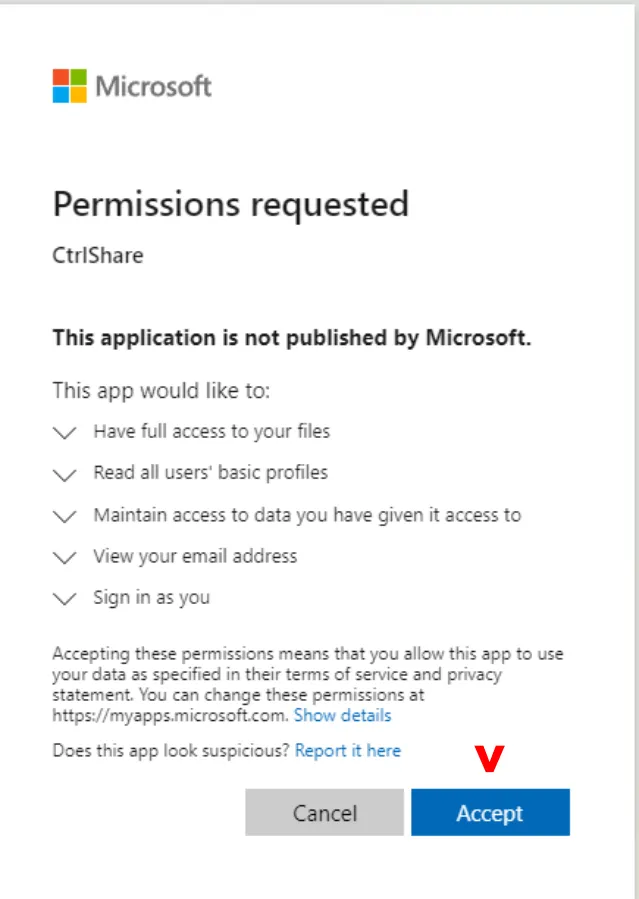
The consent page. It lists the permissions named in the authorisation URL; this one comes from an older URL, which also asked to read users' basic profiles. -
Copy the address from the address bar.
The browser then reports that it cannot connect to
localhost. That is expected: nothing runs at that address, and the page exists only to hold the result. The address bar keeps it:http://localhost/ctrlshare?code=0.AUgAvawd…deu&session_state=xxxxxxxxCopy the whole address.
-
Paste it into the configuration and save.
Paste the address into Authorization Code and save. CtrlShare takes the code out of it, so the code alone works as well. Saving exchanges the code for a token CtrlShare can refresh, and a code can only be exchanged once.
M-Files Admin does not show whether the exchange worked. A failed exchange is written to the vault application log, so look there first.
Then check a document out to OneDrive and back in. The connection can look right and still fail on first use, and a real check-out is the only thing that proves it.
Related
Section titled “Related”- Register the Entra ID application — where the client ID and secret come from.
- Prevent users re-sharing a document — the setting on this same account that keeps the sharing record complete.