

The week portal
The week portal is where time actually gets booked. It is a Calendar component on a portal bound to a Week object, so a person opens their week and fills it in.
By the end of this example a user can open a week, add customer and internal time to it, and move the week to approval.
Before you start
Section titled “Before you start”- CtrlTime set up, with its employee, time and week objects in place.
- Time objects with the classes you want to book against. This example uses two, Customer Time and Internal Time.
-
Create the portal.
In the CtrlPortals configuration, expand Portals and create one called
Week, bound to the Week object type. -
Add a calendar to it.
Add a segment, and inside it a component with its type set to Calendar.
Optionally add a header segment above it with a title such as
Week (Auto), so the person can see which week they are looking at.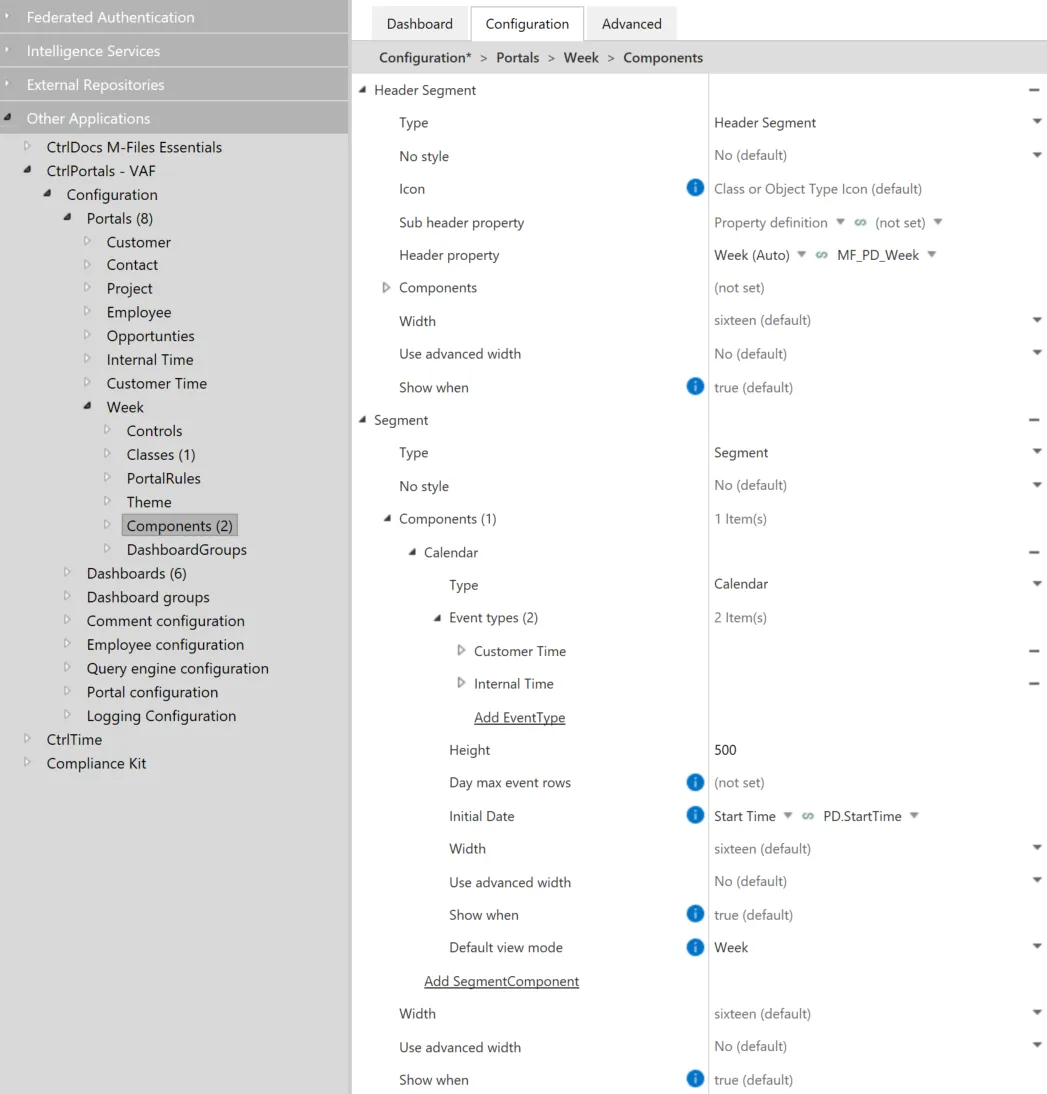
The week portal: a header segment with the week's title, and a calendar below it. -
Add an event type for customer time.
An event type tells the calendar which objects to show and how. Add one for the Customer Time class, and set:
- the indirect relationship to
Week (Auto), so the calendar shows the entries belonging to the week the portal is open on; - no personal relationship — on this portal the week already identifies the person, so filtering by person as well would show nothing.
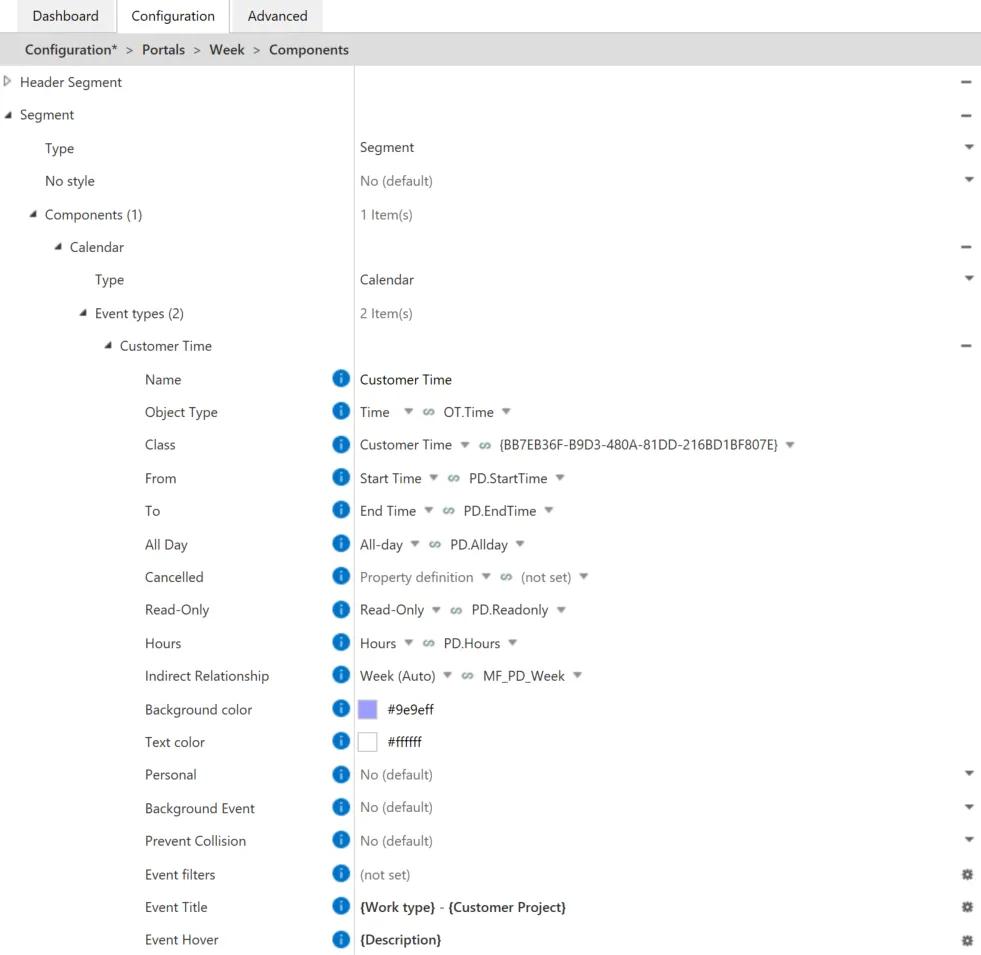
The customer time event type, with the indirect relationship set to the week. - the indirect relationship to
-
Add an event type for internal time.
The same again for the Internal Time class. Give it a different colour — that is the only thing distinguishing the two kinds of entry on the calendar.
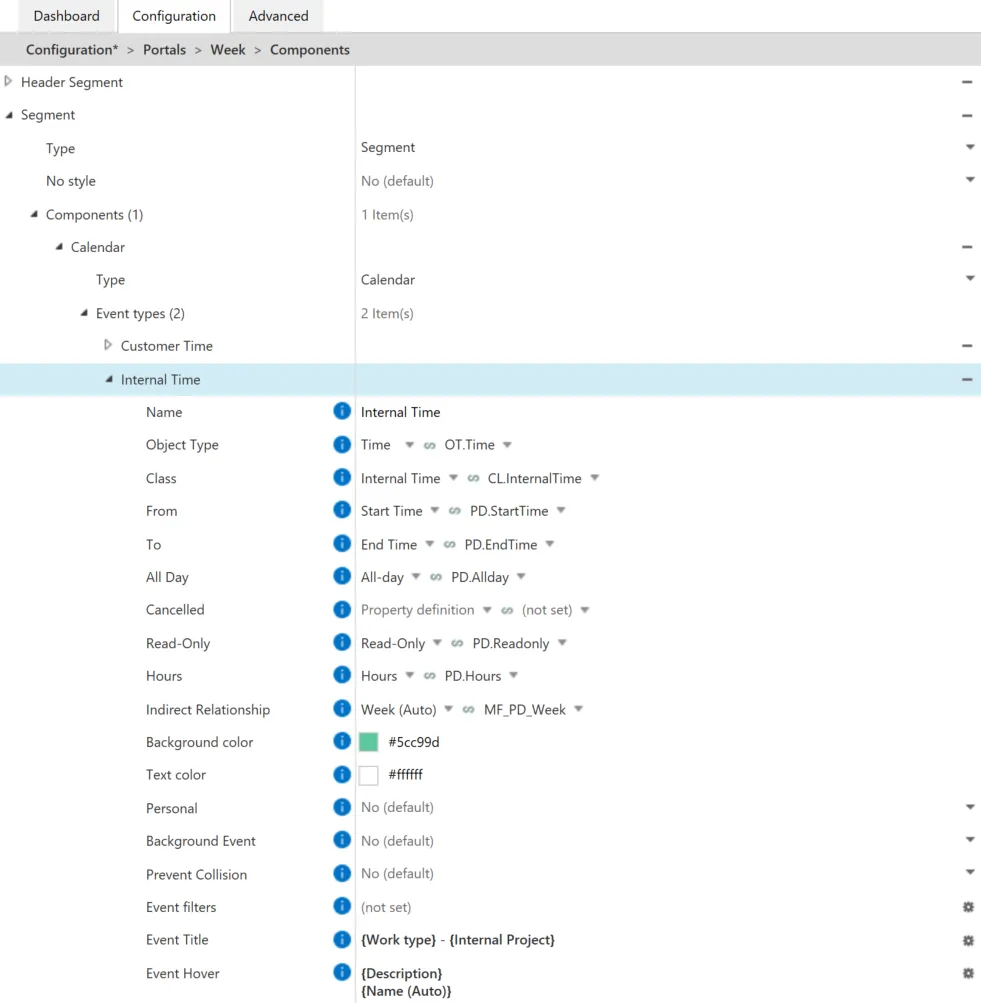
The internal time event type, in a different colour from customer time. -
Send a week for approval.
Open the time registration dashboard and select a week. The week portal appears in the right-hand pane, and the week’s workflow state can be moved from Draft to Sent to Admin from there.
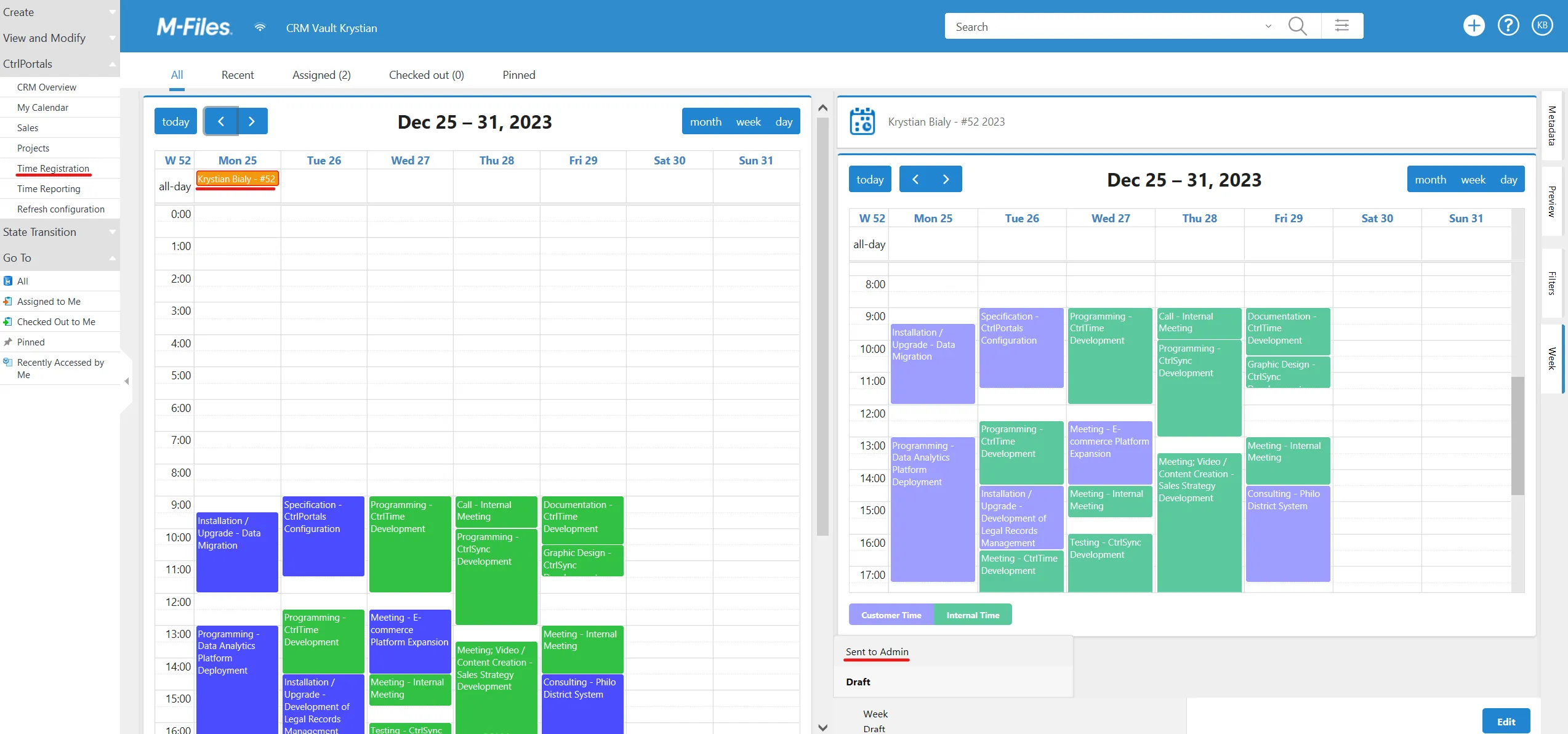
Moving a week from Draft to Sent to Admin.
What you have now
Section titled “What you have now”A portal that opens on a week and shows that week’s time entries, in two colours, with new entries added by dragging on the calendar. Moving the week to Sent to Admin takes its time entries with it.
The next thing worth building is the calendar dashboard, which shows the same entries across weeks rather than within one.