

Prevent users re-sharing a document
CtrlShare decides who can open a co-authored document, and M-Files records it. That record is only complete if OneDrive does not let people share the file onward themselves — and by default it does.
Turning that off is a setting on the OneDrive of the service account CtrlShare uses, not something CtrlShare can do for you.
Before you start
Section titled “Before you start”- The credentials of the service account CtrlShare uses for OneDrive.
- Permission to change that account’s OneDrive permission settings. In most tenants the account itself is enough.
-
Sign in to OneDrive online as the CtrlShare service account, at your tenant’s
-my.sharepoint.comaddress.The address bar should end up at something of the form
https://xxxx-my.sharepoint.com/personal/xx_xxxxxxxx_xxx/_layouts/15/onedrive.aspx. -
Change
onedriveat the end of that address touser, and press Enter. This opens the permission settings page, which has no link in the OneDrive interface. -
Select Access Request Settings in the banner at the top.
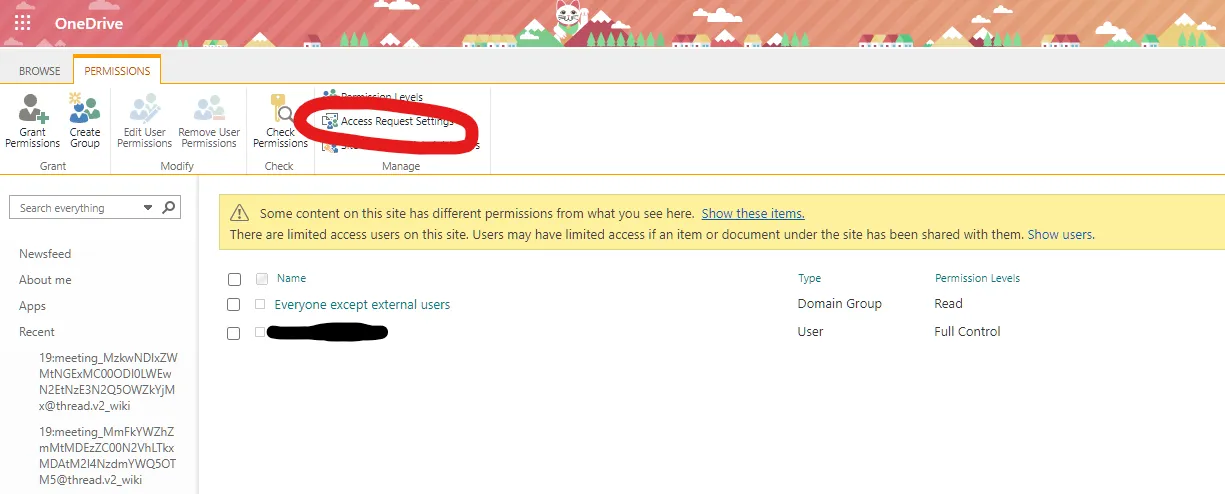
The permission settings page for the service account's OneDrive. -
Turn off both Allow members to share the site and individual files and folders and Allow access requests, then save.
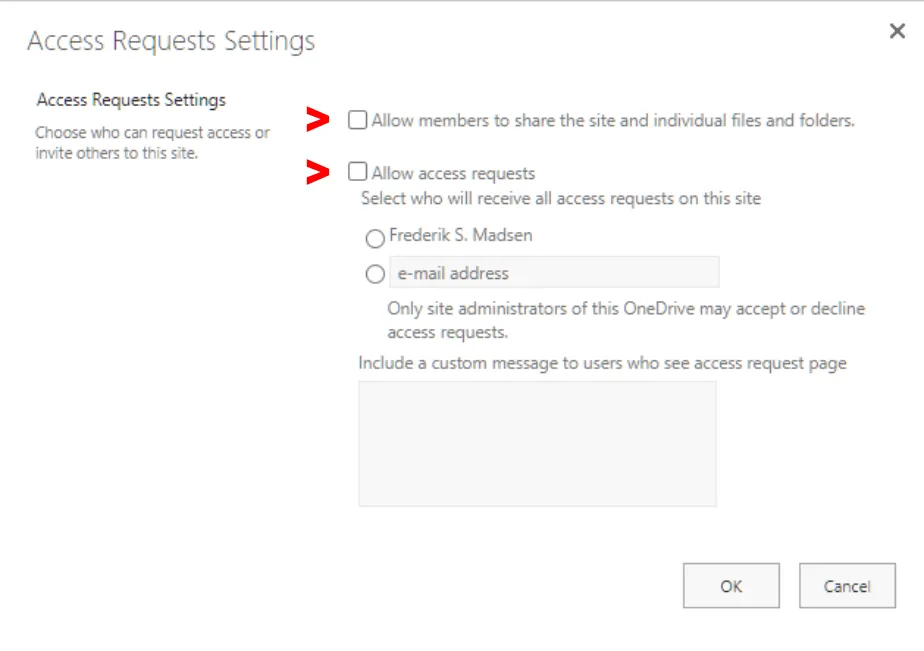
Access request settings, with sharing and access requests both turned off.
Open a co-authored document in OneDrive as one of the people CtrlShare shared it with. The share and copy-link options should be gone.
Do this as a shared user rather than as the service account — the account that owns the files can still share them, which is what makes checking as yourself misleading.
Related
Section titled “Related”- About CtrlShare — what the vault records about a session, and why the record depends on this setting.