

Register the Entra ID application
CtrlTMS finds, creates and changes teams and channels through the Microsoft Graph API, signing in as itself rather than as a person. That needs an application registration in Microsoft Entra ID, with permissions a tenant administrator has consented to.
Before you start
Section titled “Before you start”- Permission to create an application registration in Entra ID.
- Someone who can grant admin consent for the tenant. This is frequently a different person, and waiting for them is what usually holds up a deployment.
- If CtrlSync will be installed in the same vault, read Share one Entra registration first. One registration can serve both.
Sign in to the Azure portal and open Microsoft Entra ID from the search bar at the top.
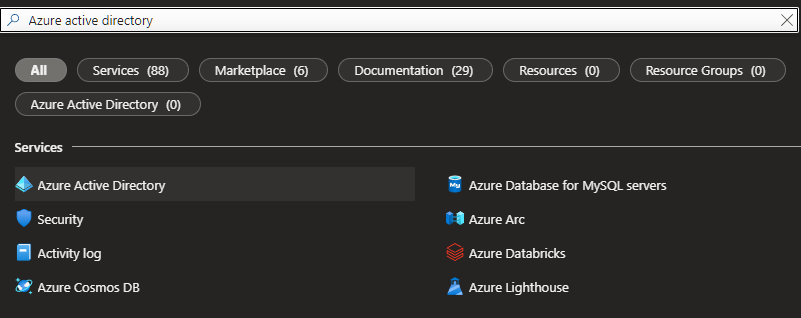
Microsoft Entra ID was called Azure Active Directory until 2023, and older tenants still show that name. Select App registrations under Manage, then New registration.
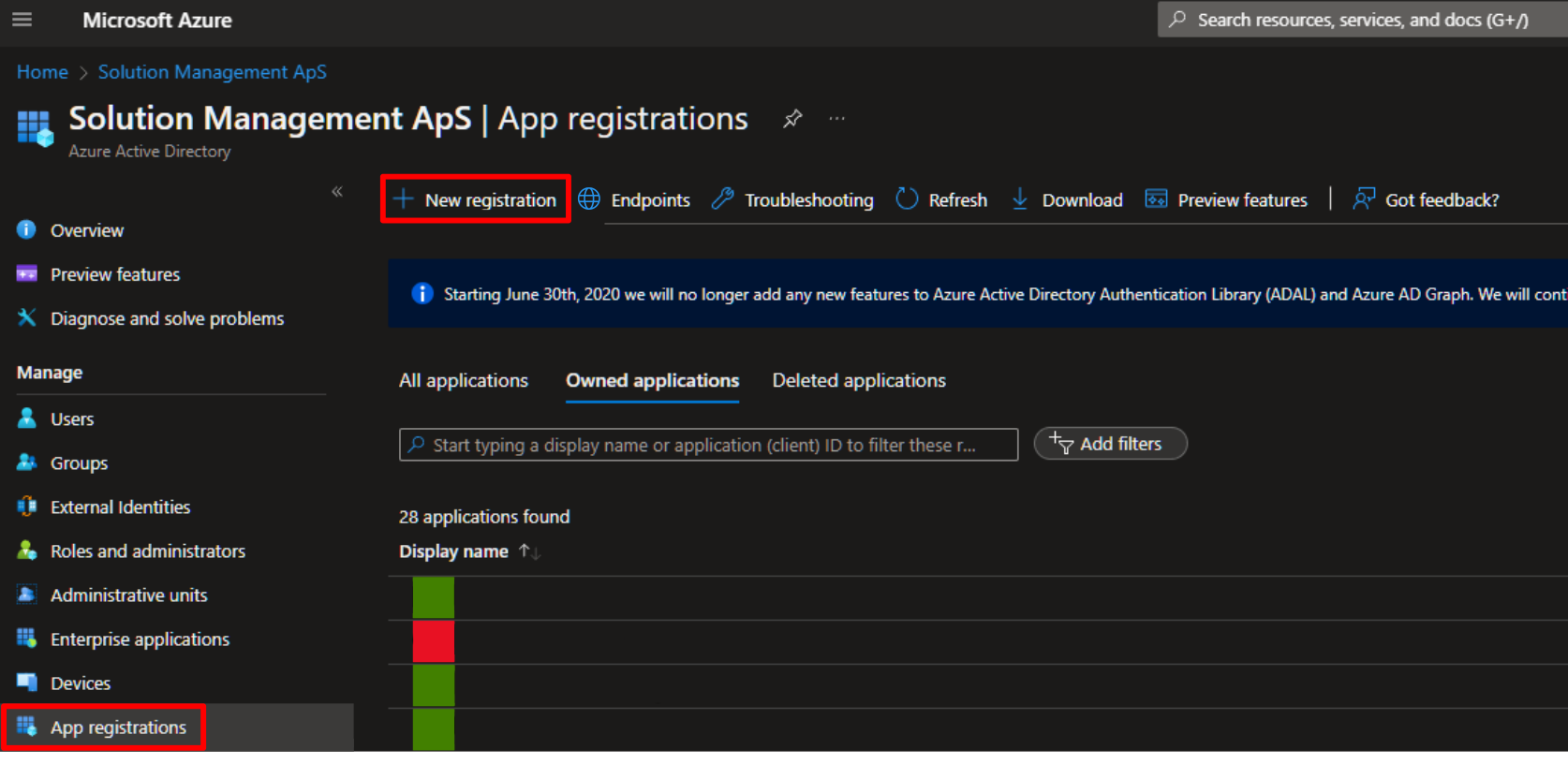
Fill in the registration:
- Name — something that says what it is for, such as
CtrlTMS. If the registration will be shared with another product, name it for both: a registration named after one product is the sort of thing somebody deletes while tidying up. - Supported account types — Accounts in this organizational directory only (single tenant).
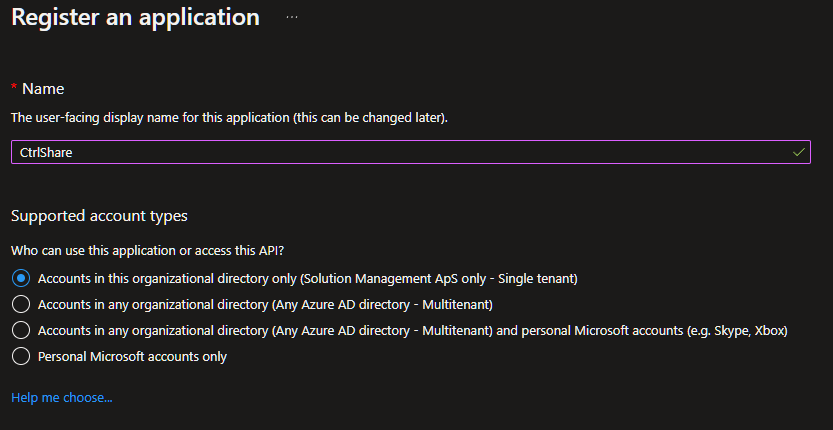
- Name — something that says what it is for, such as
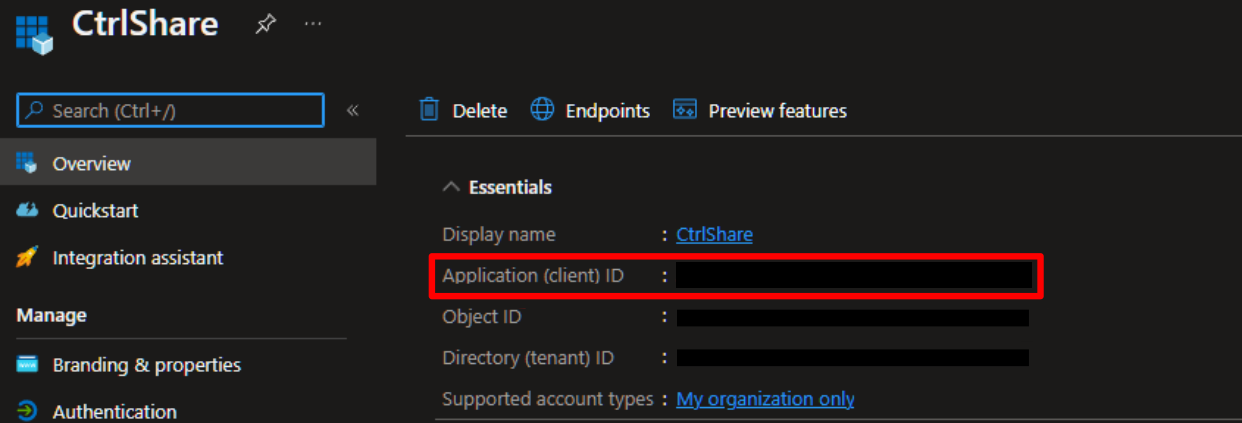
Select Register. On the Overview page that appears, copy the Application (client) ID and the Directory (tenant) ID.
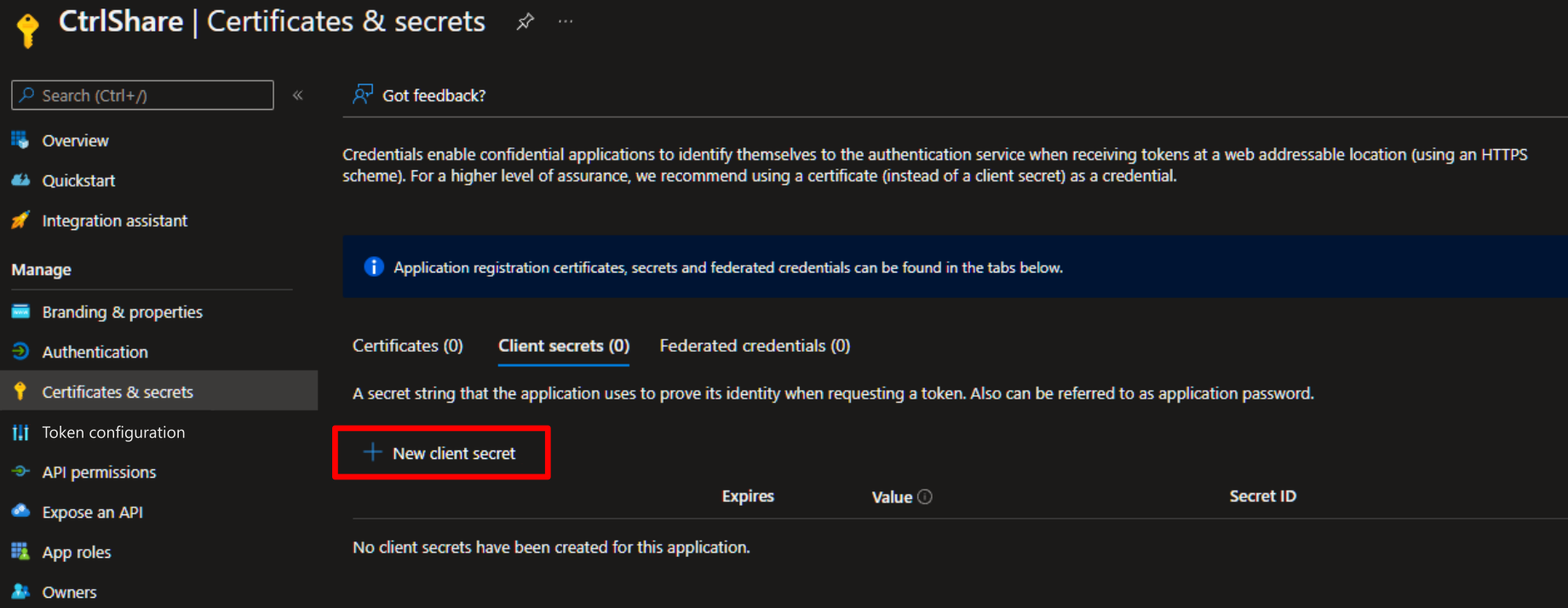
Open Certificates & secrets and select New client secret. Give it a description and an expiry — 24 months is a reasonable choice.
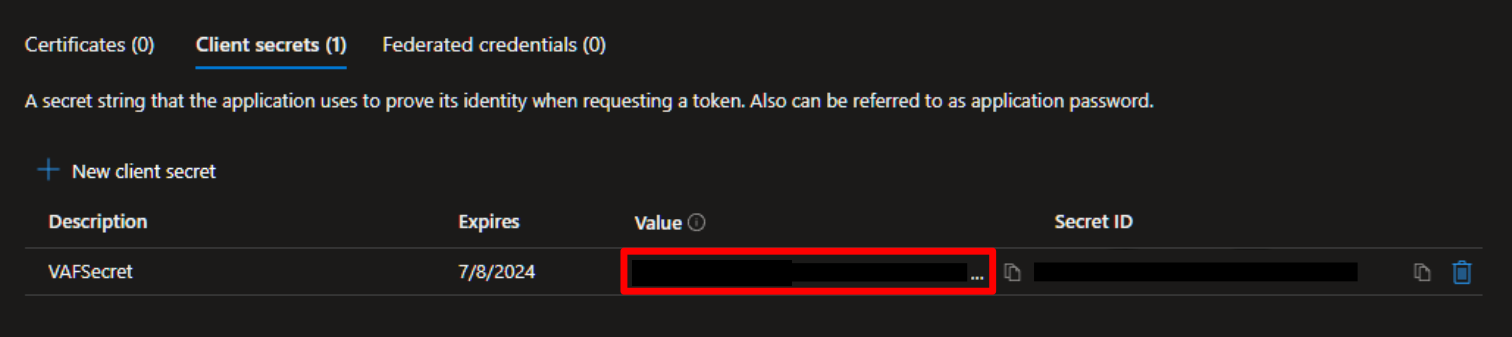
Copy the secret Value — not the Secret ID — and record it somewhere you can find it again.
Open API permissions, add the permissions listed below, and have a tenant administrator select Grant admin consent.
The permissions CtrlTMS needs
Section titled “The permissions CtrlTMS needs”All of these are application permissions, not delegated ones: CtrlTMS runs as itself, with no signed-in user.
| Permission | What CtrlTMS does with it |
|---|---|
Team.ReadBasic.All |
Lists the teams in the tenant, which is how discovery finds them |
Team.Create |
Creates a team from an M-Files object |
TeamSettings.ReadWrite.All |
Reads and changes a team’s settings |
TeamMember.ReadWrite.All |
Adds and removes team members |
Channel.ReadBasic.All |
Reads channel names and descriptions |
ChannelSettings.ReadWrite.All |
Reads and changes channel names, descriptions and settings |
ChannelMember.ReadWrite.All |
Adds and removes channel members |
Channel.Delete.All |
Deletes a channel |
ChannelMessage.Read.All |
Reads channel messages |
Group.ReadWrite.All |
Reads and writes groups, which back every team |
Files.Read.All |
Reads files in all site collections |
Files.ReadWrite.All |
Writes files in all site collections |
- Every permission in the table shows as granted in the Entra portal, not as Not granted.
- You have the tenant ID, the client ID and the client secret value recorded. The secret is shown once.