

Dashboards
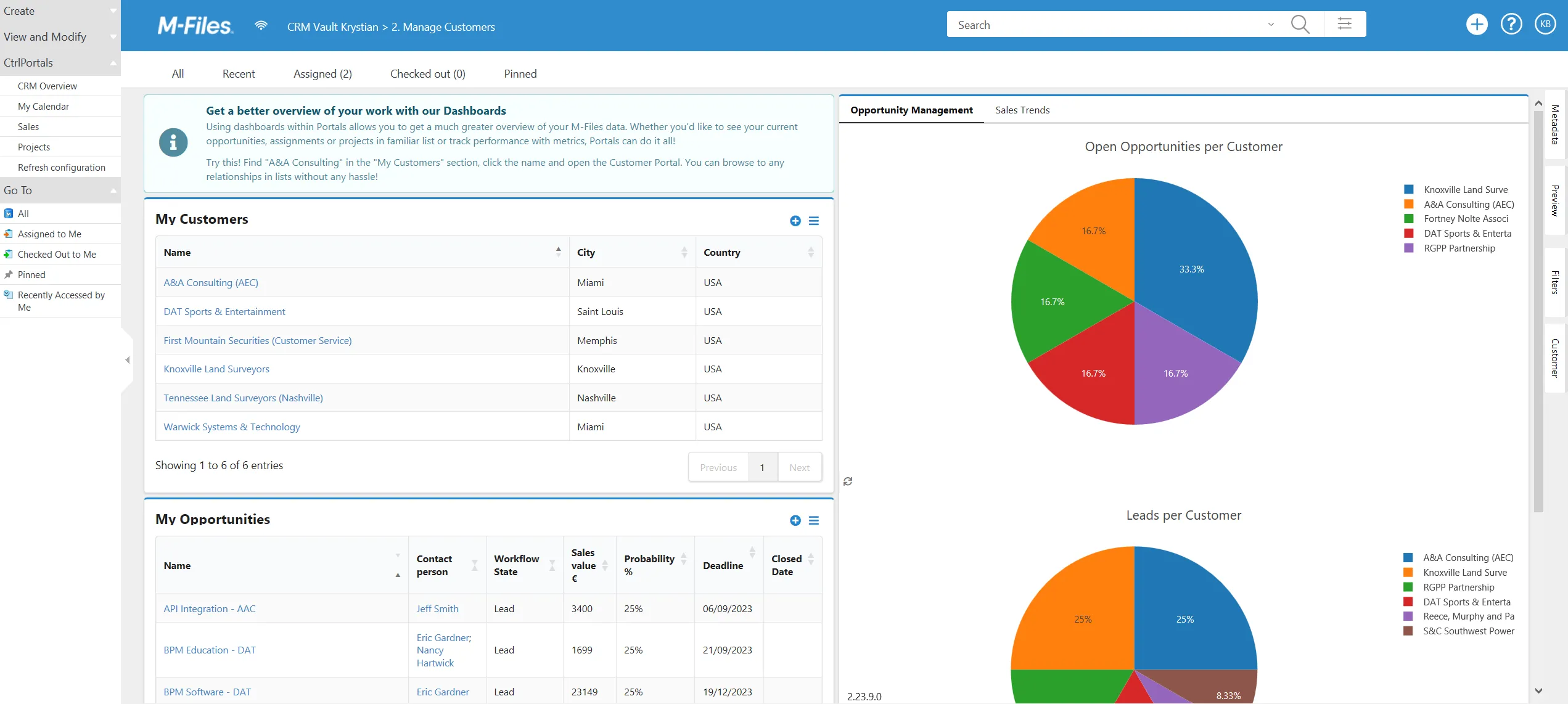
A dashboard fills the main M-Files pane rather than the strip beside an object. Use one where what you want to show is not about a single object — a team’s workload, this month’s figures, a queue of things waiting.
How a dashboard differs from a portal
Section titled “How a dashboard differs from a portal”A dashboard takes the same components as a portal and lays them out in the same grid. Two things are different.
It has no subject object. Nothing on a dashboard reads from a selected object, and there is no object to edit, so a dashboard never draws the workflow and editing footer that a portal draws. Anything showing data has to fetch it — through a view, a query or a data source.
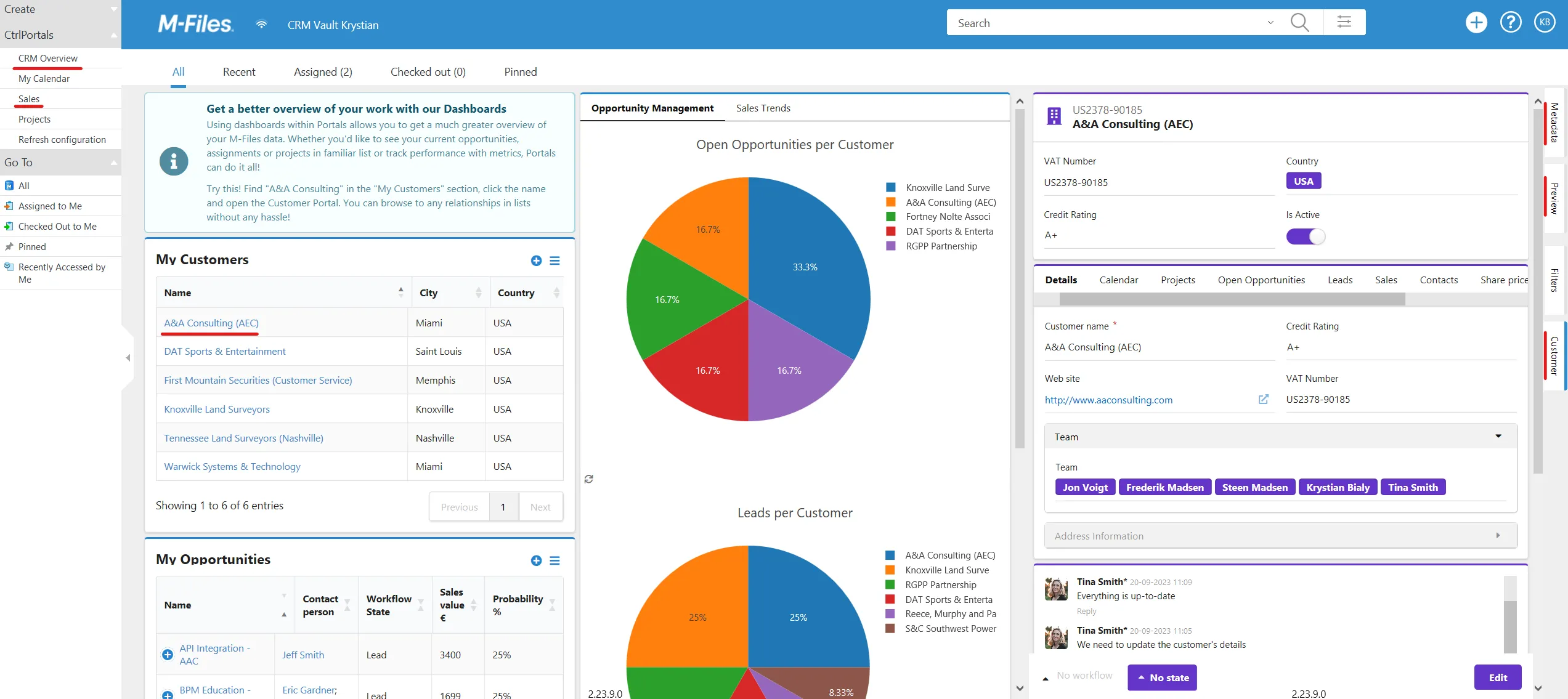
It is reached from a menu rather than from the right-hand pane: the task pane in the classic client, the top-pane menu in the newer one. That makes a dashboard available while a metadata card, a portal or a document preview is open, rather than replacing what the user is looking at.
Dashboard groups
Section titled “Dashboard groups”Groups decide how the menu is organised. They are defined once at the top level of the CtrlPortals configuration, under Dashboard groups, not on the dashboards themselves. A group needs a label, which is what the menu shows, and a unique identifier, which is what a dashboard refers to.
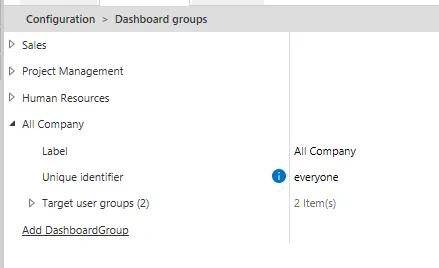
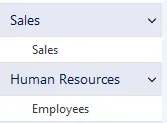
After adding a group, refresh the configuration before going further. Until you do, the group does not appear in the list a dashboard can choose from.
A dashboard can then be a member of several groups at once, and appears under each of them.
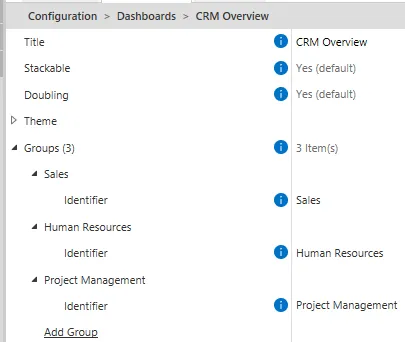
A dashboard that belongs to no group is not lost: it is put in a default group labelled CtrlPortals, which is also where the Refresh Configuration command sits (Refresh configuration in the classic client’s task pane).
Who sees a dashboard
Section titled “Who sees a dashboard”A group can be narrowed with Target user groups — M-Files user groups, from the vault’s users and user groups in M-Files Admin, not named access control lists.
The filtering happens on the server, before the configuration reaches the client, and it works through the groups rather than on the dashboard directly:
- A group with no target user groups is offered to everyone.
- A group with target user groups reaches only users who belong to at least one of them.
- A dashboard reaches a user when it is in no group at all, or when at least one of its groups reaches that user.
A user outside every group never receives the dashboard’s configuration, so there is nothing on the client to find by other means.
Binding a dashboard to a view
Section titled “Binding a dashboard to a view”A dashboard can be bound to an M-Files view under Views. Opening that view then opens the dashboard instead of the view’s contents, which is how you give a dashboard a shortcut that does not depend on the menu.
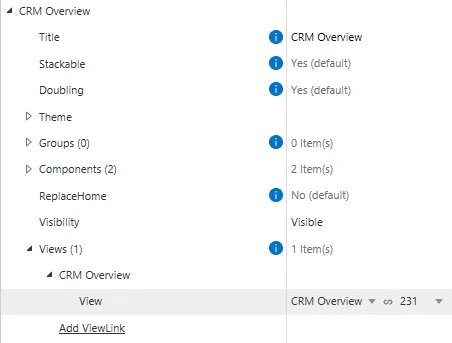
Built-in M-Files views can be used as well. The configuration lists every view available to choose from when you add one.
Hiding a dashboard from the menu
Section titled “Hiding a dashboard from the menu”Setting Dashboard Visibility to Hidden keeps a dashboard out of the menu while leaving it
reachable. Use it for a dashboard that should only be opened through a view binding.
Hiding changes the menu, not access: a hidden dashboard is still delivered to every user its groups reach.
The setting is read by the classic client’s task pane. The newer M-Files UI does not read it, so a hidden dashboard still appears in its top-pane menu; do not rely on hiding to keep a dashboard out of sight there.
Replacing the home screen
Section titled “Replacing the home screen”Replace Home Screen puts a dashboard where the M-Files home view would be, which is how the four-quadrant layout of classic M-Files is recreated.
It replaces the home screen for every user the dashboard reaches — all users when the dashboard is in no group, and only the members of the targeted user groups when it is. If more than one dashboard has the setting on, the first of them in the configuration is the one that appears.
Settings
Revision
Bumped by the server on every write of this item, and what a later save is merged against (ItemSave): the editor sends it back untouched, so the server knows which revision that editor loaded. Not for hands.
TitleRequired
The title that is displayed either in the dashboard menu or in the tab of a portal.
Replace Home Screen
If set to true, this dashboard will replace the home screen for users that have access to this dashboard. Note: This might have unexpected effects if multiple dashboards have this option enabled. Default: no.
Dashboard Visibility
Determines if a dashboard is visible to users in the menus. Hidden dashboards can still be accessed directly via views. Default: Visible.
HiddenVisible
Dashboard Theme
Defines the visual theme for this dashboard. Settings here override the default theme settings.
Groups
Choose which groups, defined in 'Dashboard Groups', to show this dashboard in.
Views
Select the views that will display this dashboard when opened.
Components
Add and configure the components that will be displayed in this dashboard.
Dashboard settings, generated from CtrlPortals 3.26.9.53.