

Mapping properties from a folder path
A SharePoint folder structure usually already says what a document is. Agendas, Memos,
Project Plans, Reports — the folder is the document type, written down by whoever filed it.
A path property mapper turns that into M-Files metadata as the document is imported, so the same information ends up as a class and a set of properties rather than staying as a folder name.
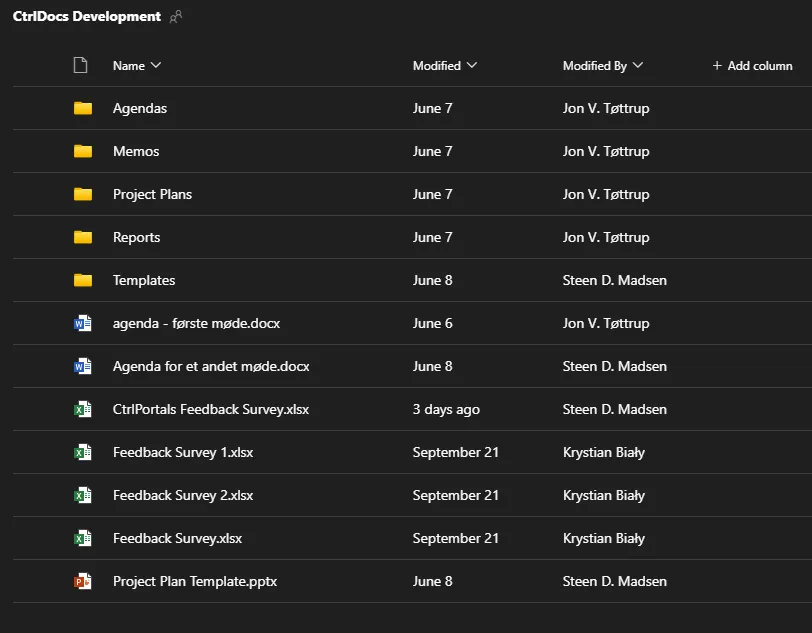
By the end of this example a document filed in Reports arrives in the vault as class
Report, with its phase, phase number and date read out of the rest of the path.
Before you start
Section titled “Before you start”- A synchronising connection, from Connect the sample vault to Teams.
- One M-Files class per document type you want to map — Agenda, Memo, Project Plan, Report, Deliverable.
- The properties you plan to fill from the path, available on those classes: Phase Name, Phase Number, Customer, Project Code.
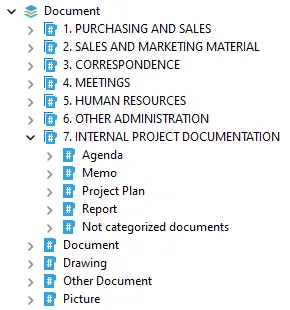
All of these are configured in M-Files Admin → CtrlSync → Document configurations → Path property mappings.
-
Map the folder name to a class, the loose way.
Add a path property mapping for the
Classproperty. The MappingType decides how much of the path has to match:MappingType Matches when AnyA class name appears anywhere in the path. The loosest option FirstThe top-level folder matches a class name, which then applies to everything beneath it LastThe folder the document is actually in matches a class name Lastis the right default.Anywill match a class name that happens to appear in a customer’s name. -
Or map it by alias, when the folder names do not match the classes.
Add a path property mapping with MappingType
Last, then alias entries:- Alias:
Memos - Mode:
Static value - Value: class
Memo
This is the option to use when the folders are plural and the classes are singular, or when the two vocabularies differ.
- Alias:
-
Or map it by regular expression.
Add a path property mapping for
Classwith MappingTypeRegex. This one takes the last folder and strips a trailings, which handles the plural folders without an alias per class:(?:.*/)?([\w\s]+)s$Upload a document into
Reports, synchronise, and check it arrives as class Report. -
Read a named segment out of the path.
For a path like
/General/Project Plans/Customer/Phase 2/mydoc.docx, add a mapping forPhase Namewith MappingTypeRegex:(?:[^/]+/){3}([^/]+)The number in braces is how many segments to skip before capturing:
{1}captures the second segment,{3}the fourth. Counting the segments in a real path is the quickest way to get this right.The property should come out as
Phase 2. -
Read a number into a numeric property.
Where the folder is the number —
/General/Project Plans/Customer/Phase Number/11/file.docx— the same shape works:(?:[^/]+/){4}([^/]+)Where the number is inside a named folder —
/General/Project Plans/Customer/Projects 2025/3. Discovery phase/file.docx— skip the non-digits first:(?:[^/]+/){4}[^\d/]*(\d+)That extracts
3rather than the whole folder name. -
Read a date, in whatever form it was written.
Add a mapping for
Document Datewith MappingTypeRegex. Dates in folder and file names are written every possible way, so this one is long:(?i)(?<!\d)(?:\(\s*)?(?<date>(?:(?:0?[1-9]|[12]\d|3[01])\s+(?:Jan(?:uary)?|Feb(?:ruary)?|Mar(?:ch)?|Apr(?:il)?|May|Jun(?:e)?|Jul(?:y)?|Aug(?:ust)?|Sep(?:t(?:ember)?)?|Oct(?:ober)?|Nov(?:ember)?|Dec(?:ember)?)\s*,?\s*\d{4})|(?:(?:Jan(?:uary)?|Feb(?:ruary)?|Mar(?:ch)?|Apr(?:il)?|May|Jun(?:e)?|Jul(?:y)?|Aug(?:ust)?|Sep(?:t(?:ember)?)?|Oct(?:ober)?|Nov(?:ember)?|Dec(?:ember)?)\s+(?:0?[1-9]|[12]\d|3[01])\s*,?\s*\d{4})|(?:(?:0?[1-9]|[12]\d|3[01])\s*[/-]\s*(?:0?[1-9]|1[0-2])\s*[/-]\s*\d{4})|(?:(?:0[1-9]|[12]\d|3[01])(?:0[1-9]|1[0-2])\d{4}))(?:\s*\))?(?!\d)It covers month names (
22 Jan 2026,January 22 2026), numeric forms (22/01/2026,22-01-2026), dates in parentheses, and compact forms in file names (22012026).
What you have now
Section titled “What you have now”Documents arriving from SharePoint with their class, phase, phase number and date already set, read out of the folder path they were filed in.
The three mapping types are the whole vocabulary: a folder name matched loosely, an alias table for when the names differ, and a regular expression for everything else. Every path mapping in a real deployment is one of those three.
For every setting a mapper has, see Property mappers.