

A tour of CtrlPortals
The CtrlPortals demo vault is configured as a CRM system. This page walks through it in the order a user meets it: the home screen, a dashboard, a customer, the tabs on that customer, a dashboard written in HTML, the numbers behind the figures, the calendar and time registration. Nothing on the tour is specific to CRM — the same modules sit on projects, cases or contracts.
Sign in to the demo vault as Tina Smith (TinaS). Apart from connecting SQL Server, which is
optional and described under Plots from SQL Server, nothing here
changes the configuration, so it is safe to click through. The screenshots are dense, so zoom
in where a detail matters.
For how the pieces fit together rather than what they look like, read About CtrlPortals.
The home screen
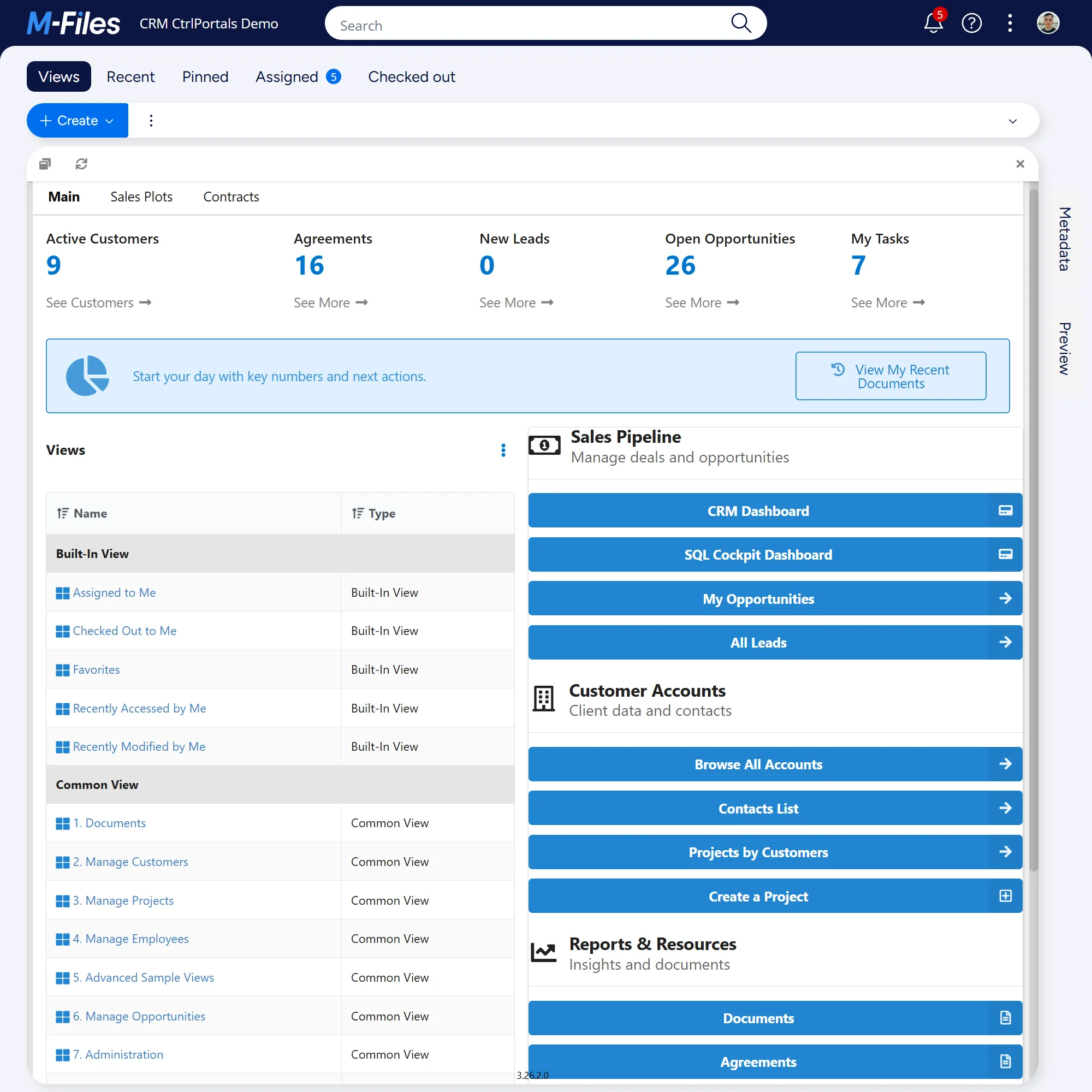
Section titled “The home screen”Signing in opens a dashboard where the M-Files home view would be. It is an ordinary dashboard with Replace Home Screen turned on, and it shows what a start page can be made of: figures across the top, drawn as Plot indicators from SQL Server data; a line of guidance and a column of shortcut buttons written in HTML; and the vault’s views in a List view. The tabs across it — Main, Sales Plots and Contracts — are a Menu module, the same as the tabs on a portal.
Plots from SQL Server describes connecting the database the figures read. Dashboards explains who gets a replaced home screen.
Start at a dashboard
Section titled “Start at a dashboard”Dashboards are listed in the three-dot menu at the top right of the M-Files window, one submenu per dashboard group: CRM, HTML and Time in the demo vault, and CtrlPortals, which holds Refresh Configuration and any dashboard that belongs to no group. The classic client lists the same groups in the task pane on the left. A dashboard is not attached to an object, so it opens in the main pane and stays there while you select objects and open their portals beside it. In the newer M-Files UI, opening a view that has no dashboard bound to it puts the view’s contents back in its place.
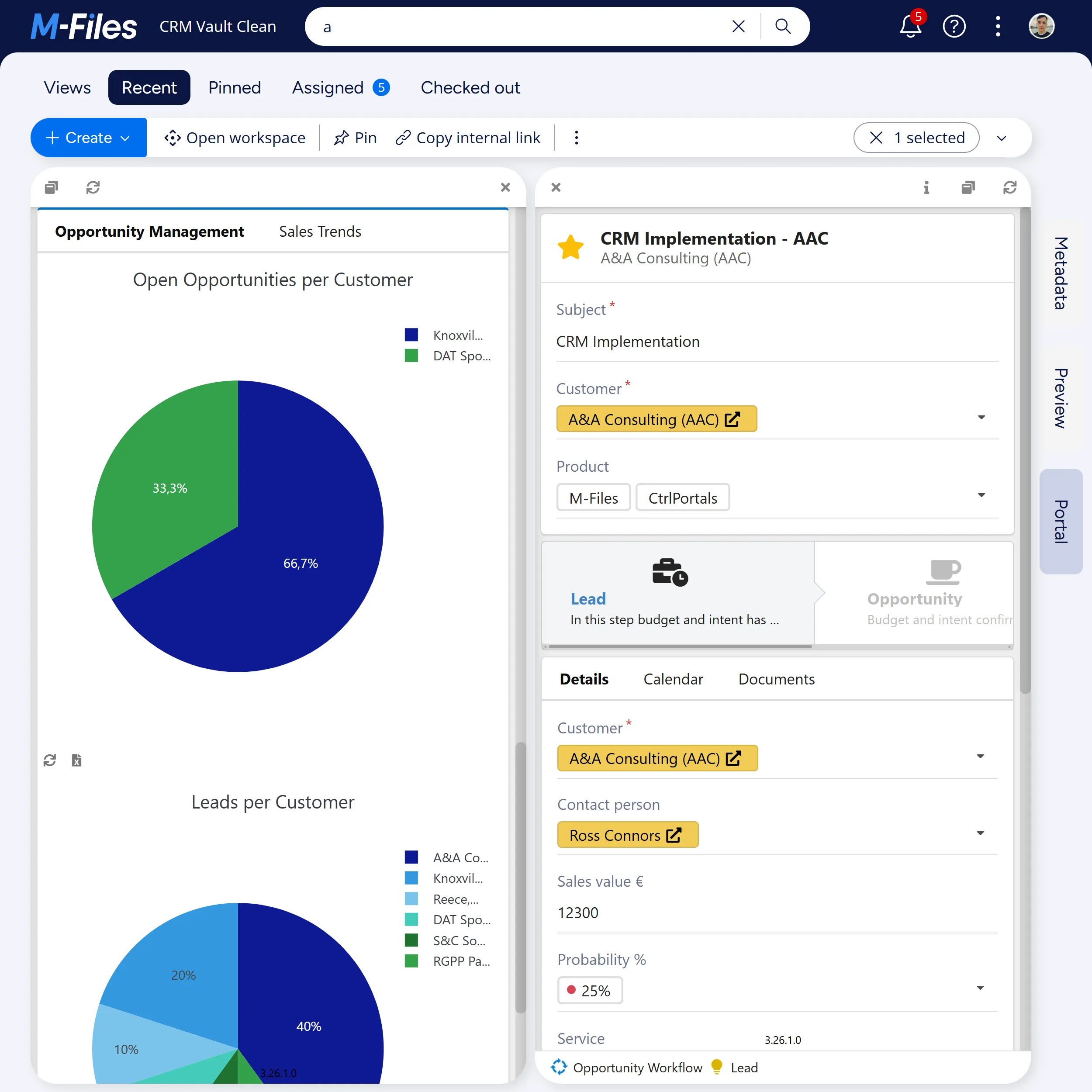
Open CRM Overview from the CRM group. It holds two lists — My Customers and My Opportunities — beside plots of open opportunities and leads per customer on its Opportunity Management tab, with Sales Trends next to it. This is the screen a salesperson would work from, and none of it required navigating a folder tree. Single-click an opportunity in My Opportunities and its portal opens in the right-hand pane, beside the dashboard.
Open a customer
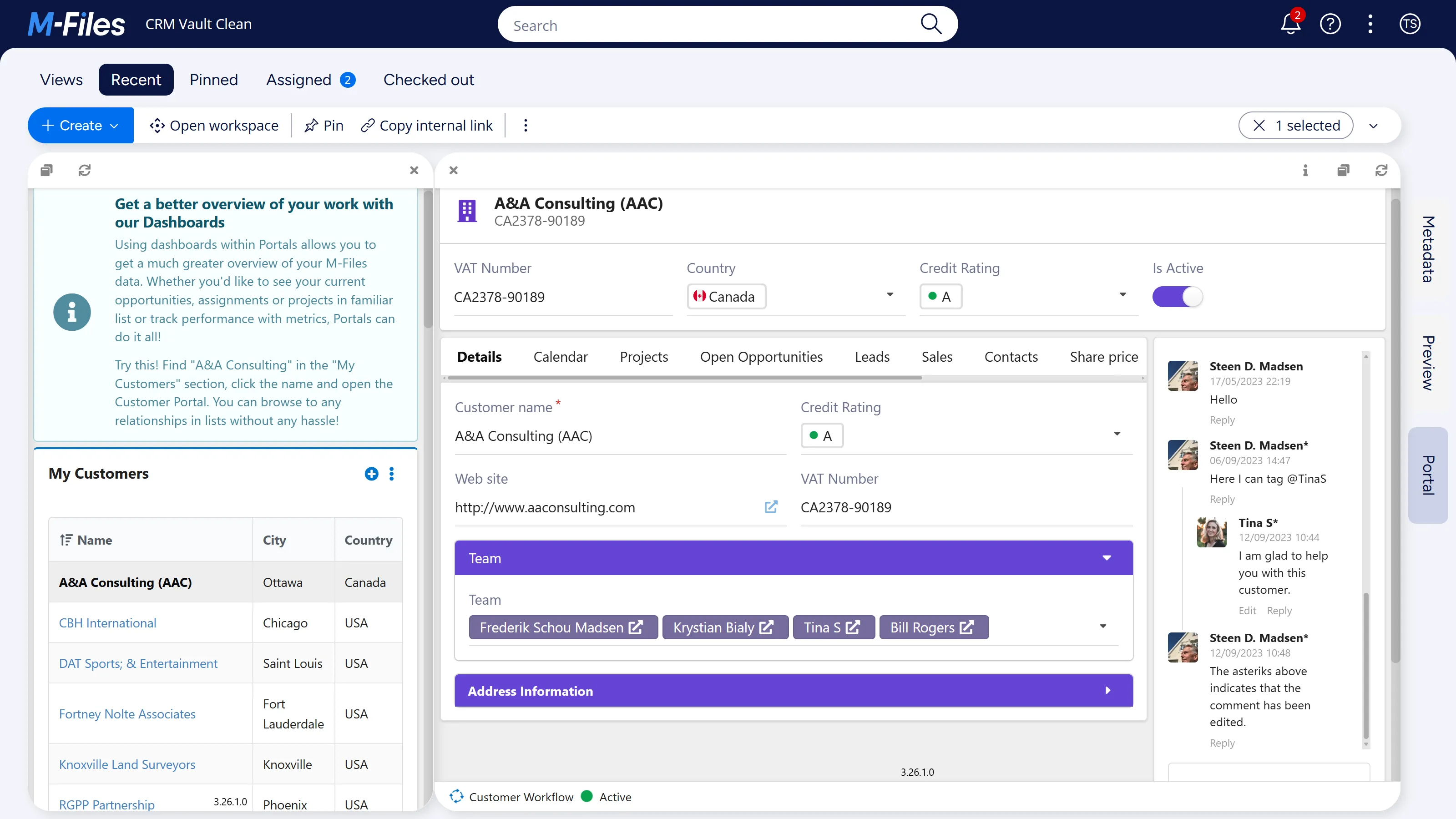
Section titled “Open a customer”In My Customers, single-click A&A Consulting (AAC). The name is a link to the object, and clicking it opens the customer’s portal in the Portal tab of the right-hand pane without taking the dashboard away. Drag the border between the panes to the left when the portal needs the width.
The portal shows the customer’s details, its related objects and its comments on one screen, instead of a tree to work down. Its fields are edited in place: change a value and Save and Discard appear in the footer, with Save with Comment under the arrow beside Save. Until something changes, the footer carries only the object’s workflow and current state. Everything a portal writes goes through normal M-Files permissions, so a user can only change what they could change on the metadata card.
Follow the tabs to related objects
Section titled “Follow the tabs to related objects”The row of tabs across the middle of the portal — Details, Calendar, Projects, Open Opportunities, Leads, Sales, Contacts, Share price, Metrics, Documents and All Opportunities — is one segment holding several, so a portal can carry more than fits on a screen. Tabs that do not fit are moved into a drop-down behind an ellipsis (…) button at the end of the row. Work along it.
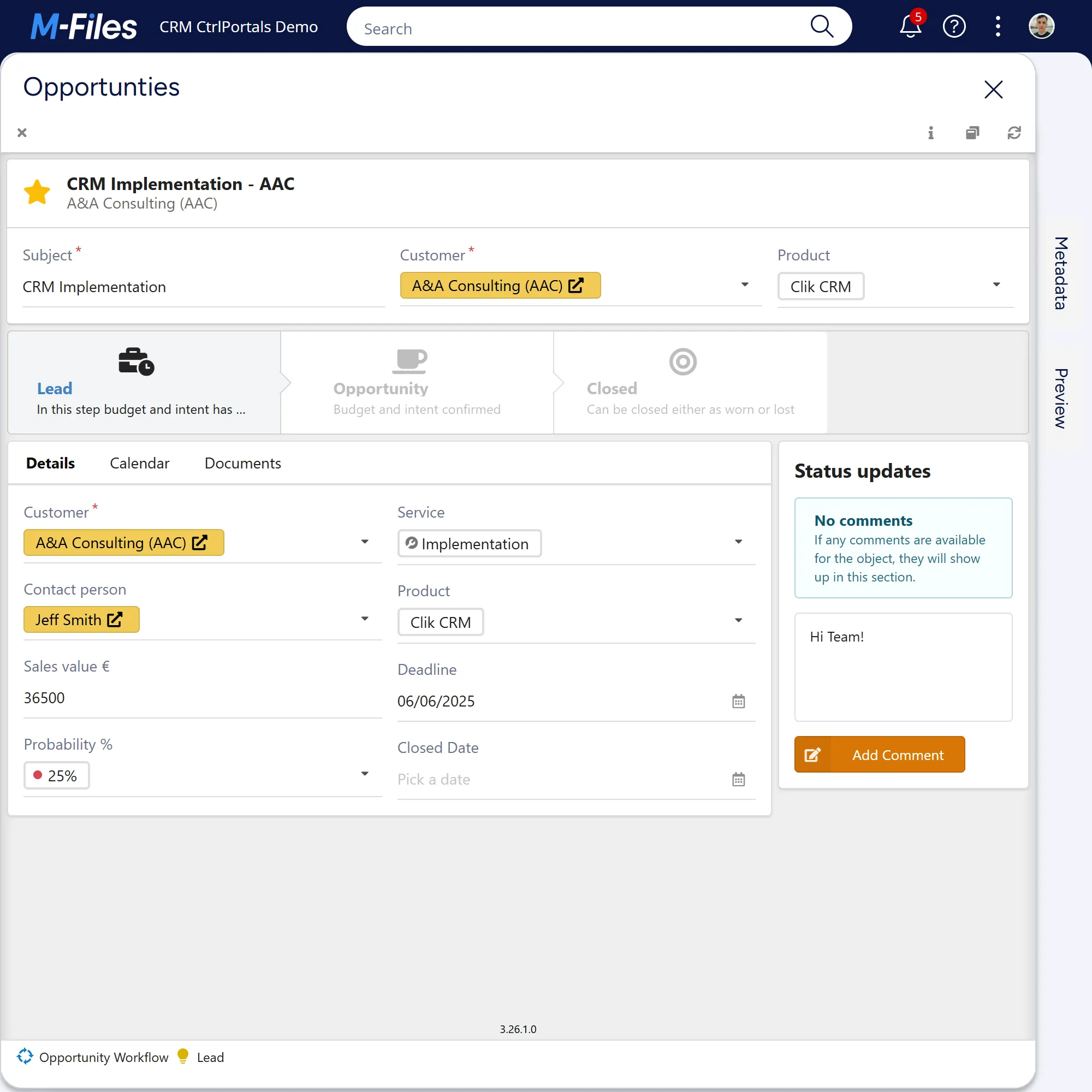
Open Opportunities lists the opportunities that point at this customer. Single-click one and its portal opens in a pop-up window, leaving the customer’s portal where it was; the classic client opens it in another tab of the right-hand pane instead. Either way it is the same movement as from the dashboard to the customer, one relationship at a time.
Below the opportunity’s header fields, a Workflow steps module lays the opportunity’s workflow out as Lead, Opportunity and Closed, with the current step marked. A step can stand for several workflow states, so a long workflow can still read as a few steps. The Calendar tab holds the opportunity’s sales events and opportunity events, Documents lists its documents, and Status updates beside the tabs is its comment thread.
Contacts lists the people at the customer, with a comment thread beside it. Comments here are
threaded rather than flat: reply to one, edit your own, and type @ to mention a colleague from
the vault’s users, which emails them where the vault has comment notifications turned on. An
edited comment is marked with an asterisk, so the record of who said what stays honest. A vault
with no Comment object type gets the M-Files version comments in the same place instead,
labelled with the workflow state on versions that entered one. They are flat: users can still
add one, which saves a new version of the object, but cannot reply to or edit them. See
the Comments component reference for which
of the two a vault gets.
Single-click Jeff Smith to open his contact portal. His properties are laid out across two columns rather than the single column of a metadata card, and the LinkedIn button above them is an HTML module — arbitrary markup on a portal, with property values from the object substituted into it. Clicking it opens his LinkedIn profile in the browser. The Share price tab back on the customer is another HTML module.
A dashboard written in HTML
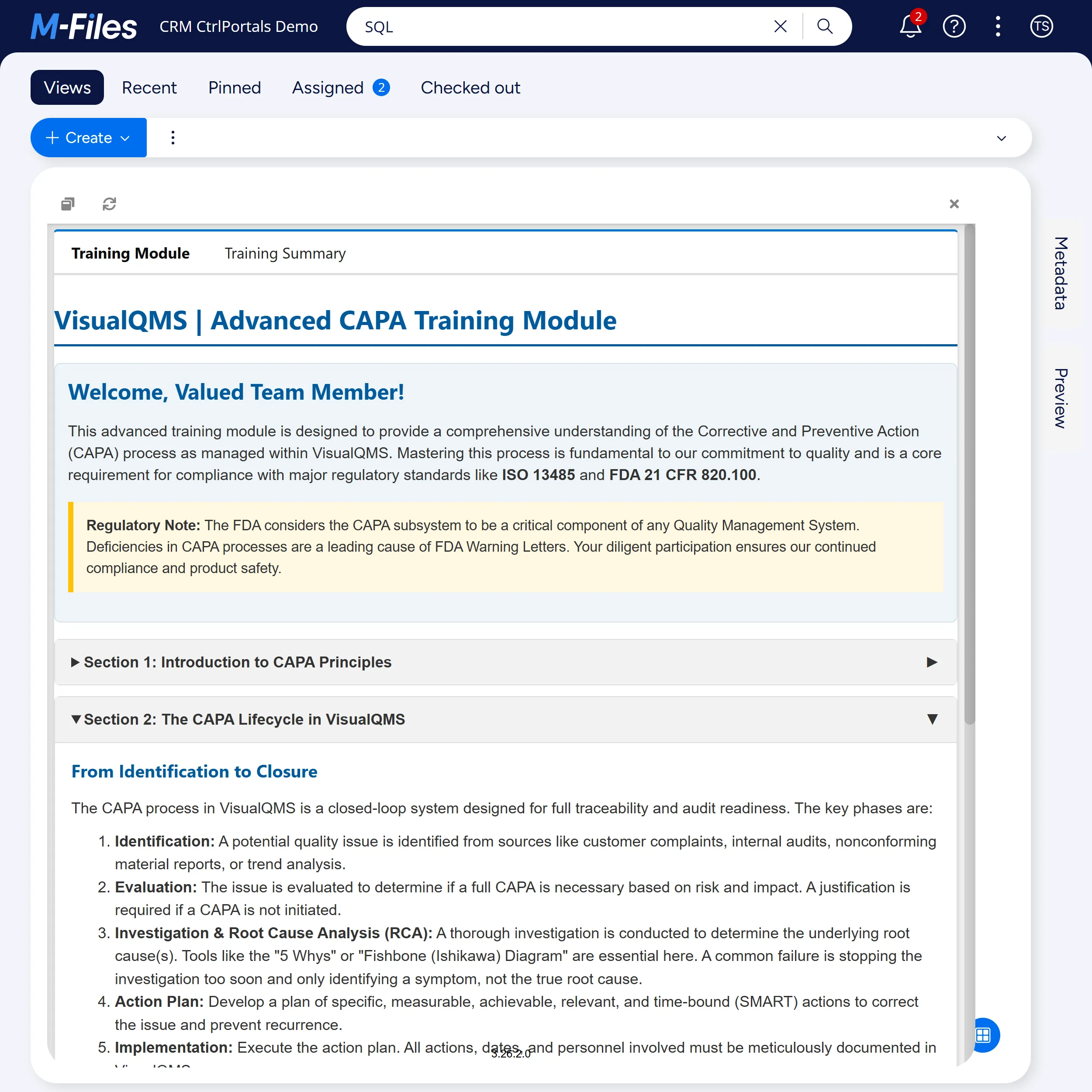
Section titled “A dashboard written in HTML”Open HTML Training from the HTML group. It is a training module laid out as a web page, with sections that open and close and a Training Summary tab beside it, and its content is written in HTML modules on a dashboard. A dashboard has no object behind it, so there are no property values to substitute. On a portal the same module takes them from the object: on a training object that stores a YouTube video ID, it can embed that video. See the HTML component reference.
Read the numbers
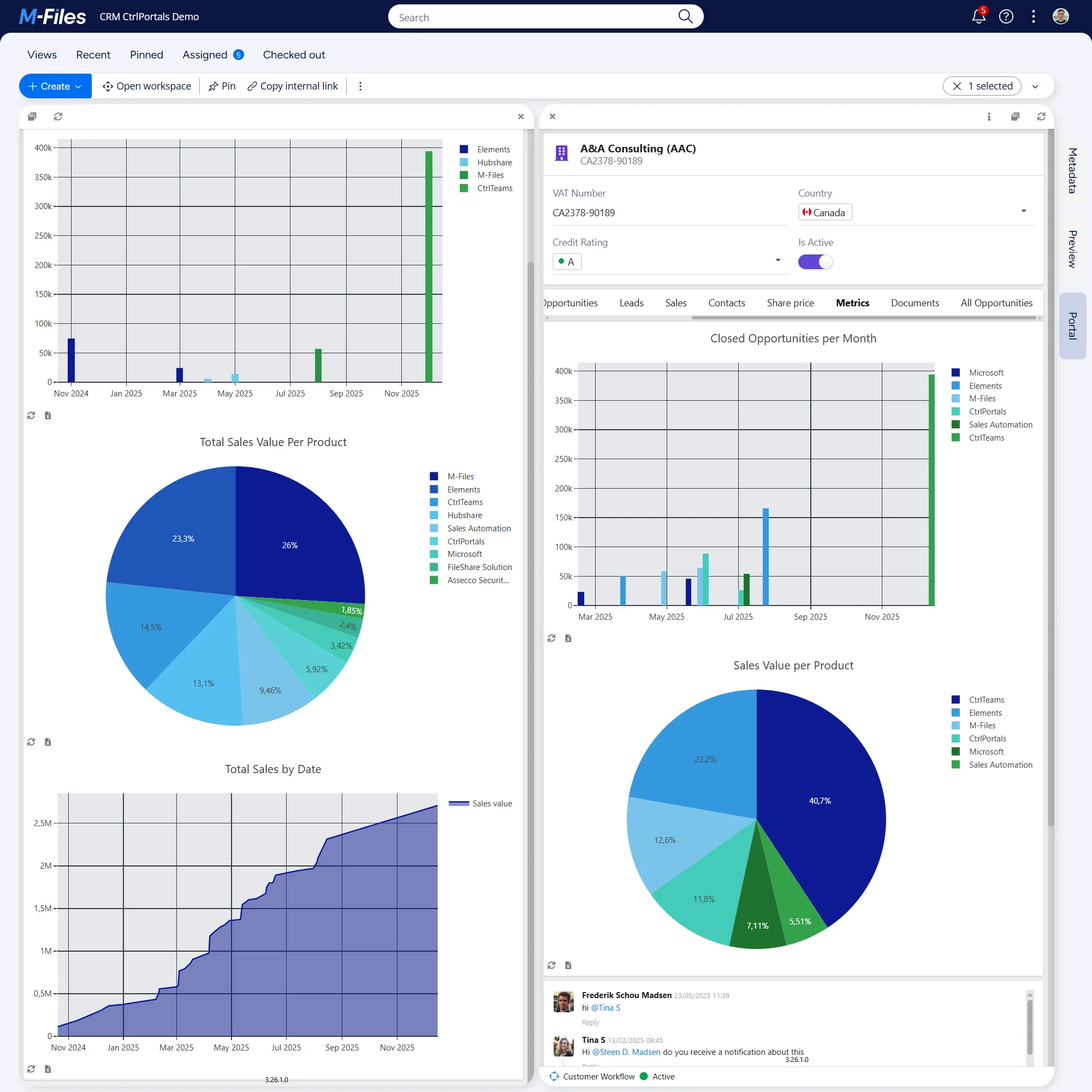
Section titled “Read the numbers”Open the Metrics tab on the customer portal, from the ellipsis (…) drop-down if it is not on the row. Then open the Sales dashboard from the three-dot menu. The dashboard takes the main pane and the portal stays beside it. The tab shows this customer’s closed opportunities per month and its sales value per product; the dashboard shows sales per product by month, total sales value per product and the running total. One customer’s figures can then be read against the trend they belong to.
A plot that reads M-Files queries the vault itself, not a copy, and keeps the result for the visual’s Cache lifetime (minutes), 30 by default. Clicking a data point drills into the objects behind it, and the refresh control on a chart clears that cache and reads the vault again. An indicator has no refresh control of its own, so an M-Files figure can be up to that many minutes old.
Plots from SQL Server
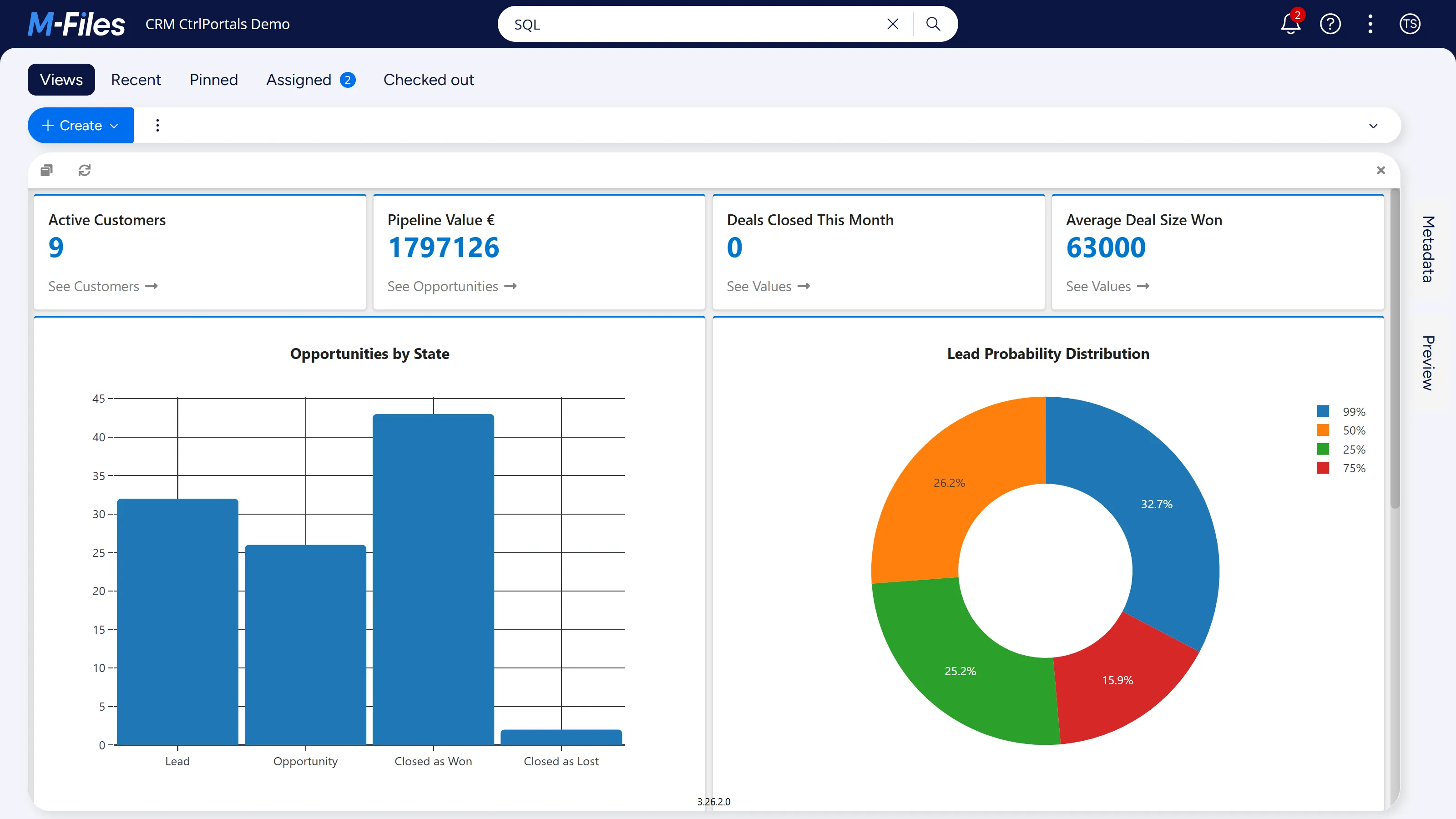
Section titled “Plots from SQL Server”Open SQL Cockpit Dashboard from the shortcuts on the home screen. Its indicators — active customers, pipeline value, deals closed this month and average deal size won — and its charts of opportunities by state and lead probability read a SQL Server database rather than M-Files, and so do the figures across the top of the home screen. A Plot takes its data from one or the other, set per visual by Data Source Type.
The database is not part of the demo vault, so until one is connected each of these plots, and
each figure on the home screen, shows Could not load the plot instead of its data. The
M-Files plots elsewhere on the tour work without it. The demo vault fills the database with
M-Files Reporting and Data Export, and already has a data set for it. Connecting it takes a SQL
Server that the M-Files server can reach, with SQL Server authentication enabled, a database
named CRM_Vault_DB, and a SQL Server login CRMExport that can create tables in it. Then, in
M-Files Admin:
-
Under Reporting and Data Export, open the properties of the SQL data set and choose Define… beside the connection string. In Data Link Properties, enter the server name and the password of the SQL Server login
CRMExport, and selectCRM_Vault_DBas the database.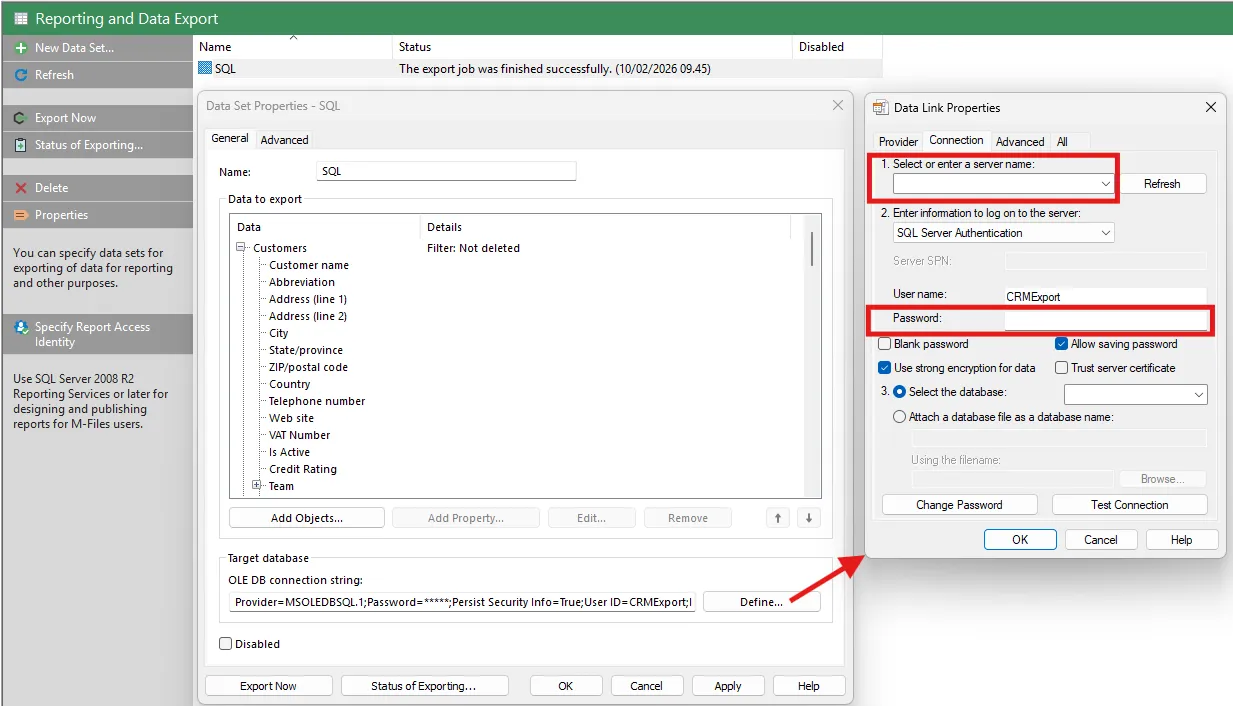
Reporting and Data Export in M-Files Admin: the properties of the SQL data set, and the Data Link Properties dialog opened from Define..., where the server name and the CRMExport login's password go. -
In the CtrlPortals configuration, expand Data Sources and then SQL Data Sources, and set Server Name and Password on CRMDEMO to the same server and password. Database Name and User Name are already filled in. Only a system administrator can change Server Name.
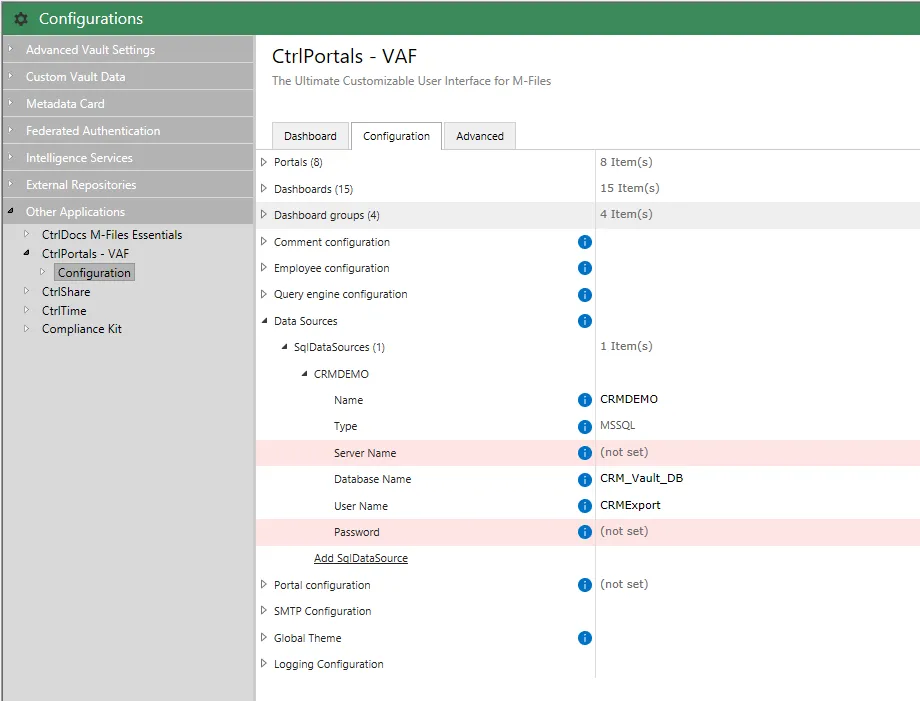
Data Sources in the CtrlPortals configuration: the CRMDEMO data source has its database name and user name set, and Server Name and Password highlighted as not set. -
Back under Reporting and Data Export, choose Export Now.
A plot that reads the export shows the vault as it stood at the last export, not as it is now. SQL results are not cached, so the refresh control on a chart reads the database again, not the vault. An indicator, such as the four figures across the top of the SQL Cockpit Dashboard, has no refresh control of its own; it reads the database again when the dashboard is reloaded with Refresh in its toolbar.
Any Plot can use the data source by name, and the database does not have to be an export of the vault: an ERP or CRM system’s own database works the same way, provided it is on Microsoft SQL Server, the only type supported. The deprecated Plot view reads M-Files only.
The calendar
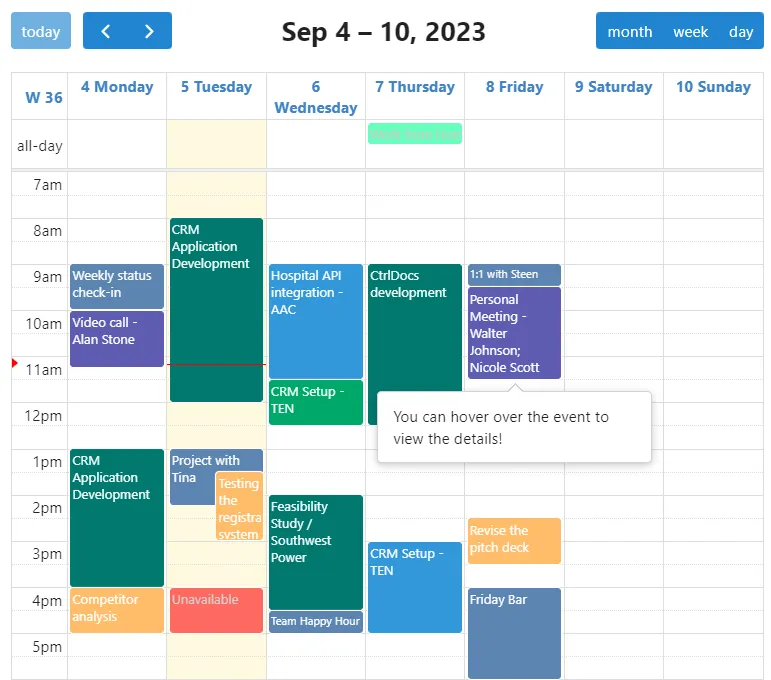
Section titled “The calendar”My Calendar, in the Time group, draws objects that have a start and an end as events. Dragging on an empty slot creates one and dragging an existing event moves it, neither of which opens a metadata card — though both still write through normal M-Files permissions.
A calendar holds several event types at once, and each event type sets its own colour and says which properties make up the title and the hover text. That is why the week below reads as a week rather than as a list of objects: the colour tells you what kind of event it is, and pointing at one shows the detail without opening anything. An event type can also be a background event, drawn behind the others and fixed in place. Under the calendar, a legend names each event type in its colour; clicking a name hides that type’s events, and clicking it again brings them back.
Time registration
Section titled “Time registration”Time Registration and Time Reporting, also in the Time group, belong to CtrlTime, which is installed in the demo vault and built on CtrlPortals: its screens are CtrlPortals calendars and plots, configured for booking hours.
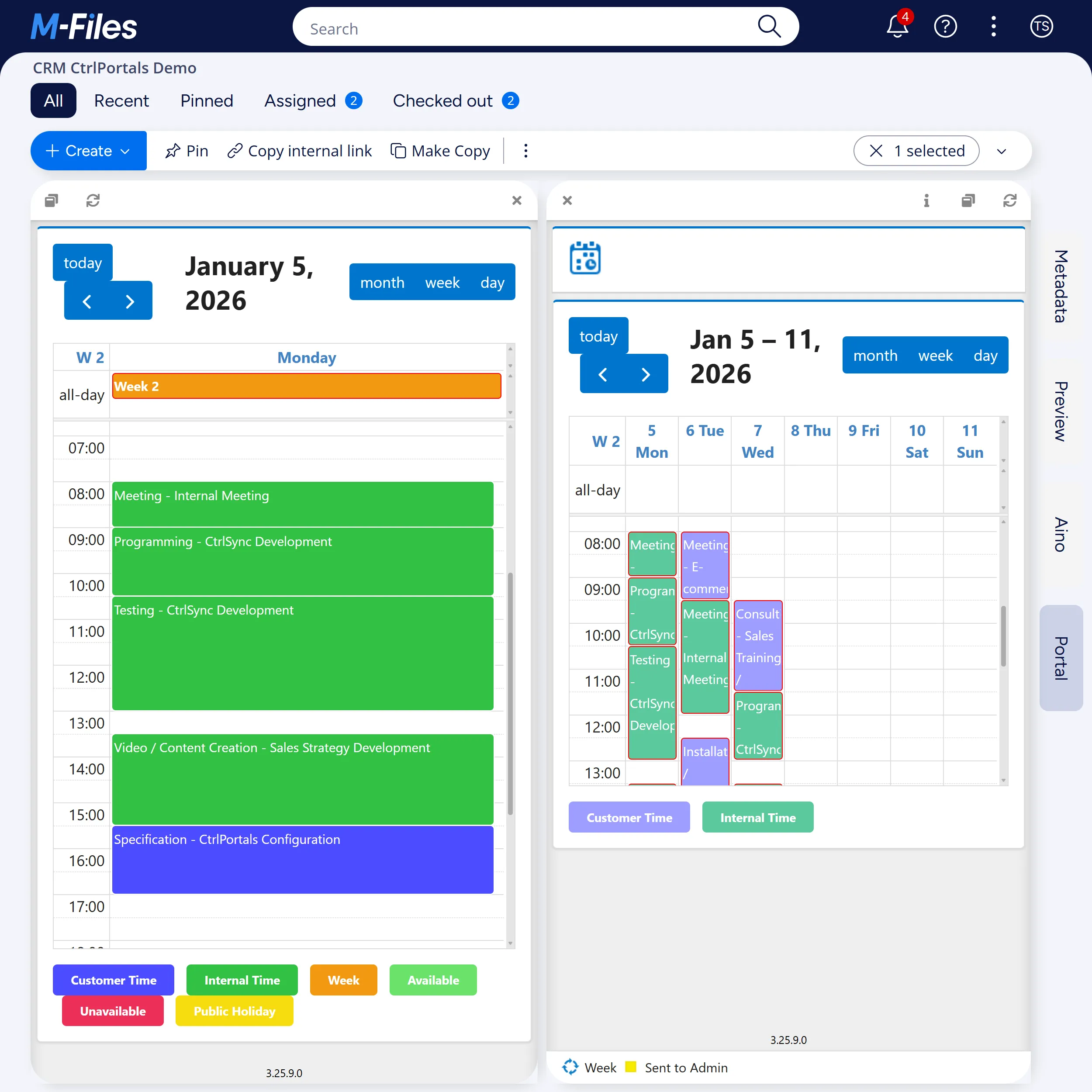
Time Registration shows booked time on a calendar, customer time and internal time in different colours, with the week the entries belong to as an all-day band. A week is an object with a portal of its own, which lists the week’s entries on a calendar and, from its footer, sends the week through its workflow for approval. Time Reporting totals the hours booked. The CtrlTime examples build each of these screens.
Where to go next
Section titled “Where to go next”- Follow a calendar through the demo vault takes one meeting from the opportunity it belongs to through to the three calendars that show it, and ends with the configuration behind the demo.
- About CtrlPortals explains how portals, segments and modules fit together, and what the product deliberately does not do.
- Configuration has every setting behind what is on this page, generated from the shipping application.