

First configuration
By the end of this page CtrlShare knows which properties to write to, who a document can be shared with, and which OneDrive account holds the working copies.
The sections are filled in from the top down, and the order matters: the M-Files properties decide what CtrlShare can record, and the OneDrive credentials decide whether anything appears on a document at all. Every setting is listed in the configuration reference. This page covers the order, what depends on what, and what breaks when a step is left out.
Before you start
Section titled “Before you start”- The application installed and licensed, and the vault restarted — see Install a vault application.
- The vault structure created.
- The Entra ID application registered, with its client ID and secret to hand.
Open the configuration
Section titled “Open the configuration”-
Open M-Files Admin and connect to the server.
-
Open the target vault and select Configurations.
-
Under Other Applications, select CtrlShare, then the Configuration tab.
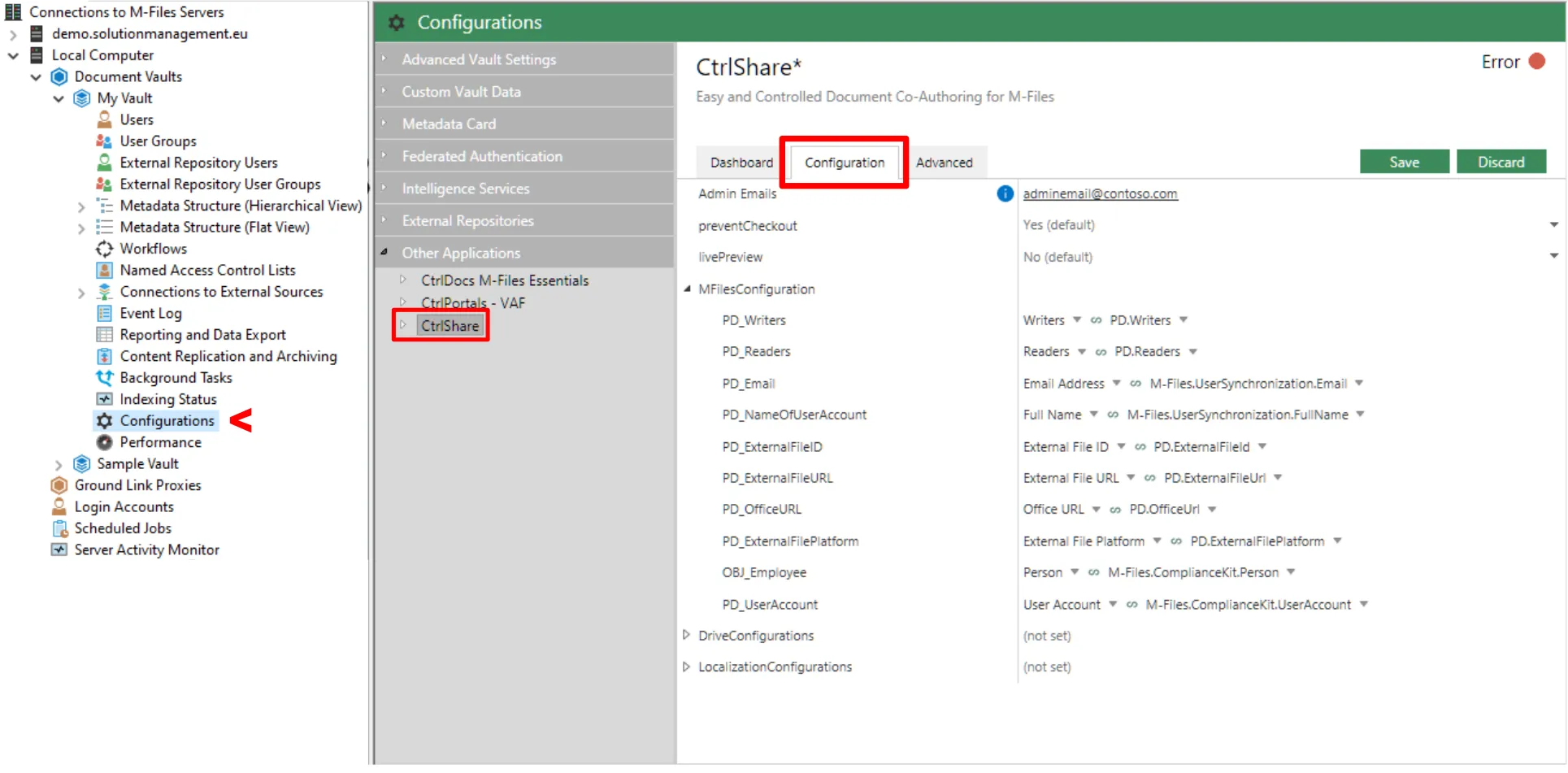
Where CtrlShare sits in M-Files Admin: Other Applications, then the Configuration tab. The settings in the right-hand pane are from a version before 2.26, and have since been regrouped into the sections below.
General
Section titled “General”Nothing in this section has to change for a first configuration. All four settings have a working default.
Document Preview Tab adds a tab showing the OneDrive copy of a checked-out document inside M-Files. It is available in the legacy web client and in the current client and web, to users who are allowed to open the document.
Help Page URL is where the Help link at the foot of the CtrlShare dialog goes. It points at the CtrlDocs help site until you change it.
Disable ‘BeginCoauthoring’ Command and Disable ‘CheckOutForCoauthoring’ Command hide two of M-Files’ own commands, not CtrlShare’s. Turn them on in a vault where co-authoring should always go through CtrlShare, so nobody starts an M-Files session the vault has no record of.
M-Files Configuration
Section titled “M-Files Configuration”This section names the properties CtrlShare writes on a document while it is out for co-authoring, and it holds the person mappings below. They all live on the document. CtrlShare fills in the file identifier, the two links and the platform itself — nobody types into those — and clears them again when the session ends.
External File ID, External File URL and External File Platform are required, and M-Files Admin reports a configuration error until each one names a property. Office URL and Track Changes Property can be left empty. The data type each setting accepts is not advice: a property of the wrong type cannot be selected for the setting at all.
External File Platform is the marker both user interfaces read to decide that a document is out for co-authoring, so it carries more weight than its single value suggests. It has to be a lookup whose value list holds an item named exactly OneDrive for Business. A check-out against any other name fails before the document leaves the vault. See Vault structure.
Track Changes Property is a yes/no property on the document. When it is set to Yes, CtrlShare turns Word’s Track Changes on in the copy it sends to OneDrive, and off again in the copy it stores back in M-Files. It affects Word files only, and it is cleared when the session ends, so it is a request for one session rather than a standing setting.
Every setting in this section is listed under M-Files configuration.
Person mappings
Section titled “Person mappings”A person mapping tells CtrlShare what kind of person a document can be shared with, and which document properties name them. There can be more than one — an Employee mapping and an External contact mapping, say — and each gets its own pair of properties. One mapping is enough for a first configuration.
Person Type decides which of the other settings apply. With User the editors and viewers
properties point straight at M-Files user accounts, and the object type, email, name and user
account settings are ignored. With Object they point at objects of a person object type, and
those four settings describe how to read one.
Editors Property and Viewers Property are both required, and both have to be multi-select lookups. They are the document properties listing who gets edit access and who gets read access through this mapping.
Email Property can be left empty when User Account Property is set: the address is then taken from the linked M-Files login account. With neither of them set, a person has no address to invite and cannot be shared with.
User Account Property is also what makes the permission check and the licence group restrictions apply to people found through this mapping, so set it wherever the people have M-Files logins.
Search Conditions narrows which people this mapping finds — active employees only, for instance.
For every setting a mapping has, see Person mapping.
OneDrive for Business
Section titled “OneDrive for Business”Enter the Client ID and Client Secret from the Entra ID application. Redirect URI has to be one of the redirect URIs registered on that application. Then complete the authorisation and paste the result into Authorization Code — see Add a OneDrive account for that exchange. Either the code alone or the whole redirect URL from the browser address bar will do; the code is taken out of it.
Saving the configuration is what redeems the code, and only when the code differs from the one already stored. Entra authorisation codes are single use, so re-saving the same one does nothing. A redemption that fails is written to the vault application log rather than shown in M-Files Admin, which is why a connection that never worked can look like one that did.
Until Client ID and Client Secret both hold a value, CtrlShare hides this whole section from the client, and no CtrlShare command appears on any document. That is the usual reason a configuration that looks finished produces nothing.
For every setting in the connection, see OneDrive configuration.
Access control
Section titled “Access control”Leave both lists empty for a first configuration. Every licensed internal user can then check out any compatible document, which is what makes the first end-to-end test worth running.
Whitelisted User Groups narrows who may start a session: with one group listed, only its members can check a document out. A whitelist that leaves out the person testing hides the commands from them too, which looks exactly like a broken configuration.
Whitelisted Conditions narrows the other side: with any conditions listed, only documents matching at least one of them can be checked out.
Neither list opens CtrlShare to external users. They never see the commands, whatever is set here.
For both lists in full, see Access configuration.
Workflow mappings
Section titled “Workflow mappings”Leave these until one session has run end to end by hand. A mapping names a Workflow and a Workflow State, and entering that state checks the document out to co-authoring and shares it with the people named in Editor Source Properties and Viewer Source Properties.
While the session is open the document cannot leave that state — neither by a user nor by an automatic transition — until it is checked back in through CtrlShare or discarded with the undo command. Somebody named in both lists is invited once, as an editor. With both lists empty the document is still checked out, and people can be added afterwards with the Share command.
For every setting a mapping has, see Workflow mapping.
Localisation
Section titled “Localisation”One entry translates every command, dialog and message CtrlShare shows. Language Code is matched against the user’s M-Files client language, and the entry marked Default Language is used for anyone whose language has no entry of its own, so mark exactly one entry as the default.
At least one entry is required, and one of them has to be the default. The server sends the client only the entry matching the user’s language, or — when none matches — only the entries marked default. With no entries at all, or with entries none of which is marked default, a user whose language does not match is sent an empty list and the commands get no names, so nothing appears on the document.
CtrlShare’s built-in English strings do exist, but they are only used for the messages the server throws when it refuses something. They do not name the commands.
To add languages or reword the commands, see the localisation settings.
Open a document of a configured class as an internal user. The CtrlShare command group appears on it, with the check-out command.
If nothing appears, check in this order: that Client ID and Client Secret are saved, that the vault was restarted after the application was installed, and that any user group whitelist includes the account you are testing with.
Then check one document out. A failure reading “The External File ID Platform property is not set up correctly” means the value list behind External File Platform holds no item named OneDrive for Business.